Skip the queues - get answers in a minute!
Getting started with your HSBC México app
Register, set up your app, and make the most of it.
- Register
- Add payees
- Update your details
- Enable notifications
- Switch your salary payments
- Enable Face ID or fingerprint recognition
If you’ve already downloaded your app, it’s time to register and start using it
- Open your HSBC México app. When you sign in, we’ll ask you to share your location. Click Continuar (Continue) and select Permitir al usar la app (Allow while using the app).
- Click No, registrarme ahora (No, register now) to start the registration process.
- Read and accept the Terms and Conditions, then click Continuar (Continue).
- Choose whether you want to register with a bank account and debit card or a credit card, enter the requested details, and click Continuar (Continue).
- Enter your personal email address and click Continuar (Continue).
- Next, confirm that the last 4 digits match your registered phone number and click Enviar código de activación (Send activation code). Then enter the code you receive via SMS.
If a different number appears, visit a branch to update it.
- Create your username and password. Choose a security question, answer it, and click Continuar (Continue).
- Create your 6-digit PIN and confirm it.
- Done! You’re now registered on the HSBC México app.
Was this information helpful?
Keep your frequent payees on hand for quick access
A) Add other HSBC accounts
- Go to your HSBC México app and select Transferir y pagar (Transfer and pay).
- Select Agregar nuevo beneficiario (Add new payee).
- Under Tipo de cuenta (Account type), select Otra cuenta HSBC (Another HSBC account).
- Fill in the required fields. When you reach Monto límite de transferencia (Transfer limit amount), enter the maximum amount you want to set for future transfers (not the amount you want to transfer at that moment), then click Continuar (Continue).
- Verify that all details are correct and select Continuar (Continue).
- Enter your 6-digit PIN, or use Fingerprint or Face ID if enabled.
Done! You’ve added your payee. You’ll need to wait 1 hour before you can make any transfers with this person.
Note: Payees can be added between 06:00 a.m. and 09:30 p.m.
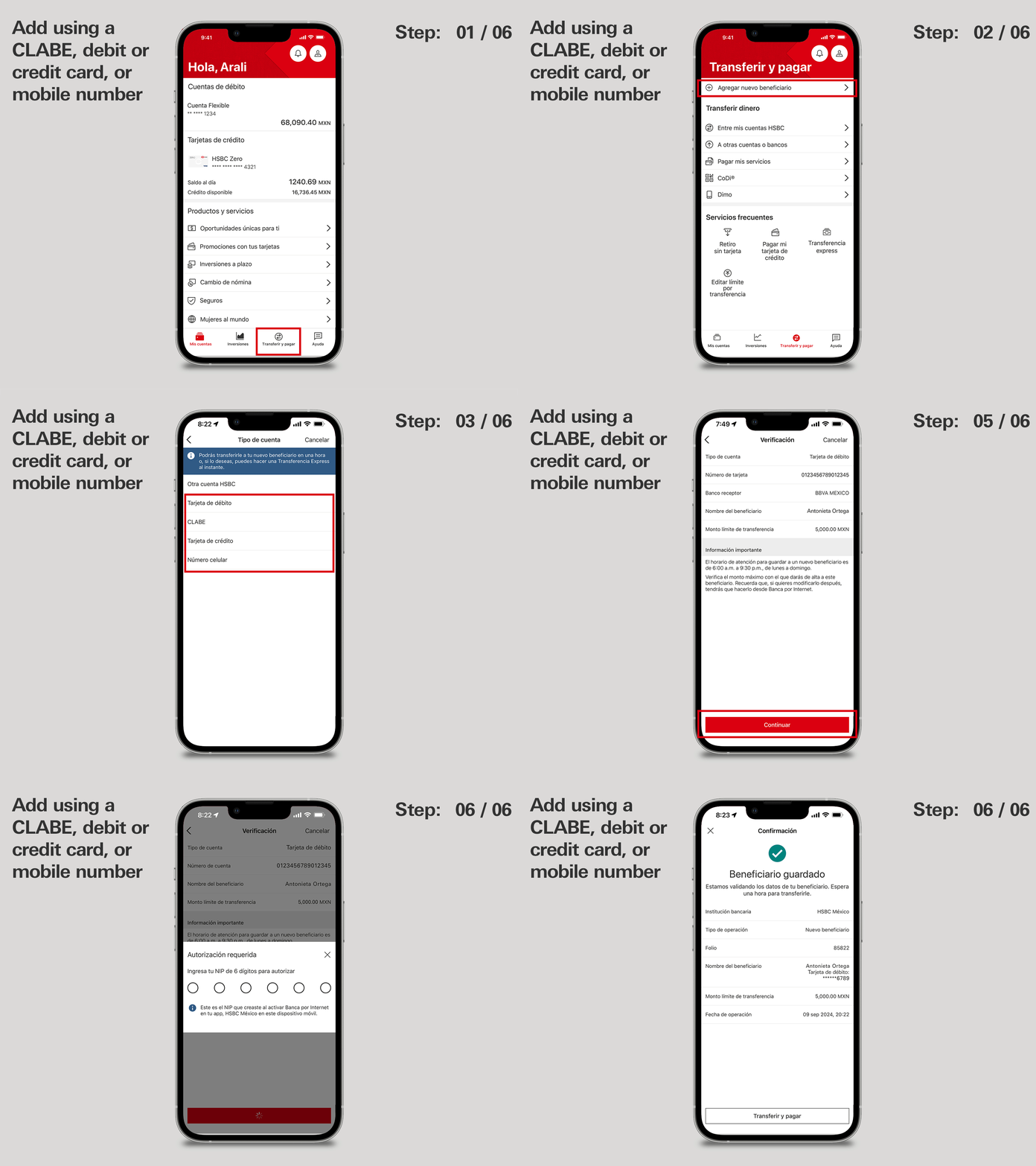
B) Add using a CLABE, debit or credit card, or mobile number
- Open your HSBC México app and select Transferir y pagar (Transfer and pay).
- Click Agregar nuevo beneficiario (Add new payee).
- Under Tipo de cuenta (Account type), choose CLABE, debit or credit card, or mobile number.
- Complete the required fields. When you reach Monto límite de transferencia (Transfer limit amount), enter the maximum amount you want to set for future transfers (not the amount you want to transfer at that moment), then click Continuar (Continue).
- Check that the details are correct and select Continuar (Continue).
- Enter your 6-digit PIN, or use Fingerprint or Face ID if enabled.
Done! You’ve added your payee. You’ll need to wait 1 hour before you can make any transfers with this person.
Was this information helpful?
Stay up to date with the information that matters most to you
- Stay up to date with the information that matters most to you.
- Sign in and click your profile icon. You’ll find it in the top-right corner of the home screen in your HSBC México app.
- Click Actualizar datos de contacto (Update contact details, right under your name), then click Detalles de contacto (Contact details).
- Select the mobile number or email address you want to update.
- Enter your new mobile number or email address, then tap Continuar (Continue) and Guardar (Save).
- Authorize the change by entering your 6-digit PIN, or using your fingerprint, Face ID, or other biometric authentication (as available on your device).
Note: You can update your details Monday to Sunday, from 02:30 a.m. to 10:30 p.m.
Was this information helpful?
Always stay on top of offers and updates
- Sign in and click your profile icon. You’ll find it in the top-right corner of the home screen in your HSBC México app.
- In Ajustes (Settings), click Notificaciones (Notifications).
- Select Ajuste de notificaciones (Notification settings).
- Turn on Recibir notificaciones (Receive notifications).
- All set! You’ll now receive the latest offers and updates we have for you.
Was this information helpful?
It doesn’t matter where your employer pays your salary - you choose where to receive your money!
- Open your HSBC México app and select Cambio de nómina (Salary switch).
- Learn about the benefits and click Cámbiate ahora (Switch now).
- Confirm your date of birth by selecting Sí, es correcta (Yes, it’s correct).
- Choose the HSBC Account where you want to receive your salary, and enter the debit card number or the CLABE of the other bank. Then click Continuar (Continue).
- Review your request details and confirm the salary switch by clicking Cambiar mi nómina a HSBC (Switch my salary to HSBC).
- Confirm with your 6-digit PIN, or using your fingerprint or Face ID.
All set! You’ve completed your salary switch request. Within a maximum of 5 business days, you’ll receive the result of your request via SMS.
Was this information helpful?
Access your app more easily using your fingerprint or Face ID
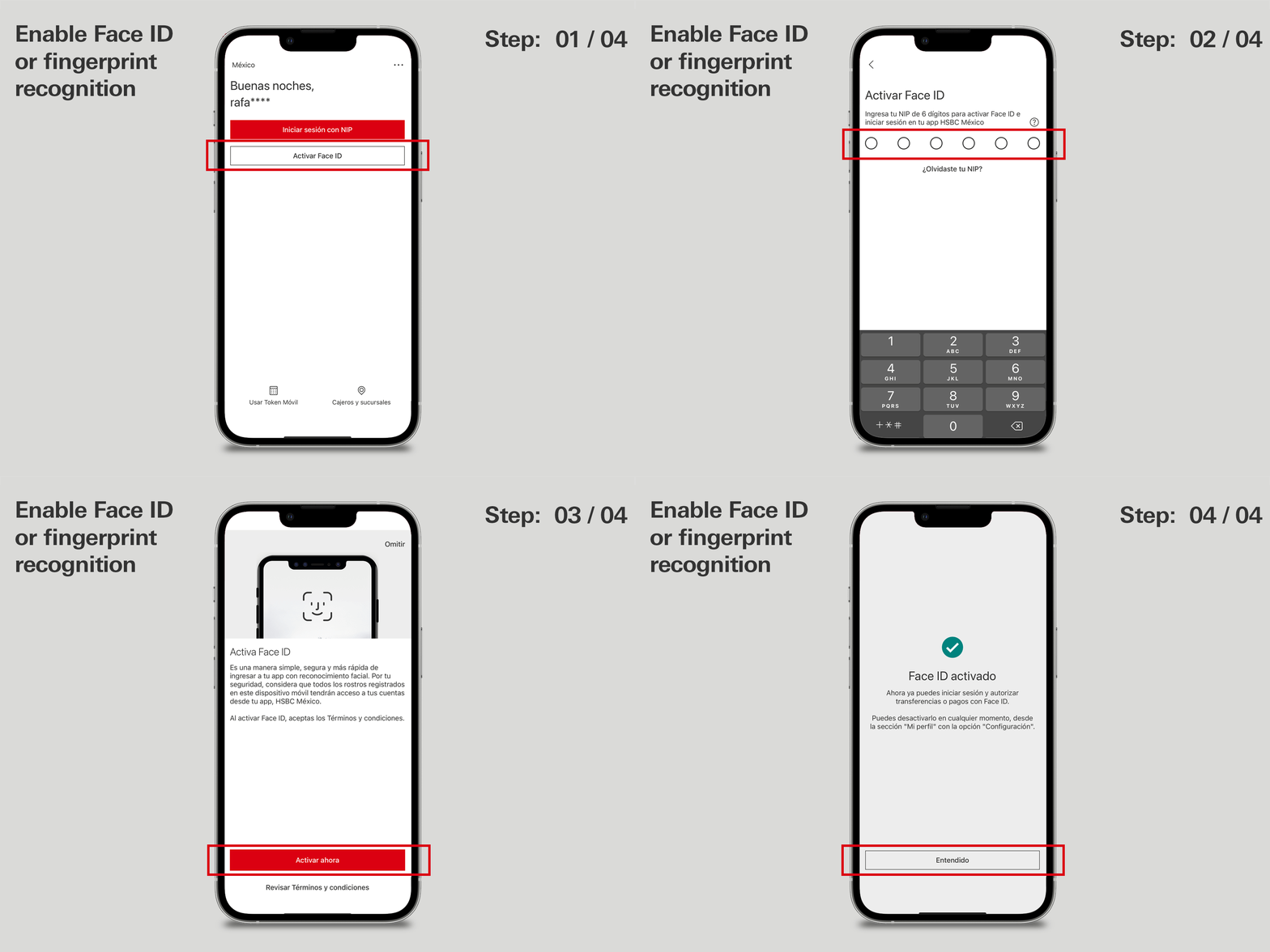
- On your HSBC México app sign-in screen, select Activar Face ID o huella digital (Enable Face ID or fingerprint).
- Enter your 6-digit PIN.
- Select Activar ahora (Enable now).
- All set! You’ve successfully enabled Face ID or fingerprint sign-in.
Was this information helpful?
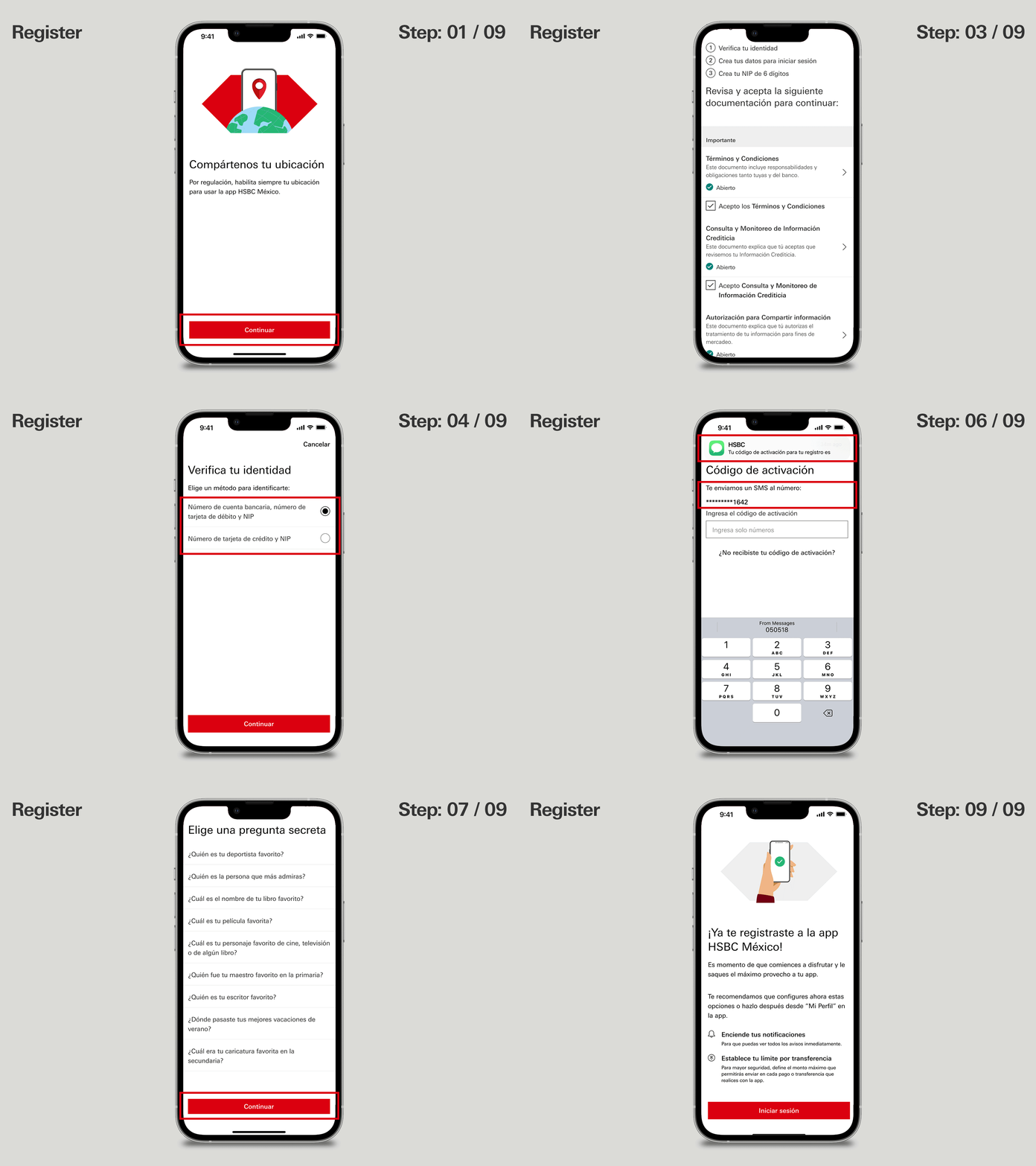
Register
If you’ve already downloaded your app, it’s time to register and start using it
- Open your HSBC México app. When you sign in, we’ll ask you to share your location. Click Continuar (Continue) and select Permitir al usar la app (Allow while using the app).
- Click No, registrarme ahora (No, register now) to start the registration process.
- Read and accept the Terms and Conditions, then click Continuar (Continue).
- Choose whether you want to register with a bank account and debit card or a credit card, enter the requested details, and click Continuar (Continue).
- Enter your personal email address and click Continuar (Continue).
- Next, confirm that the last 4 digits match your registered phone number and click Enviar código de activación (Send activation code). Then enter the code you receive via SMS.
If a different number appears, visit a branch to update it.
- Create your username and password. Choose a security question, answer it, and click Continuar (Continue).
- Create your 6-digit PIN and confirm it.
- Done! You’re now registered on the HSBC México app.
Was this information helpful?
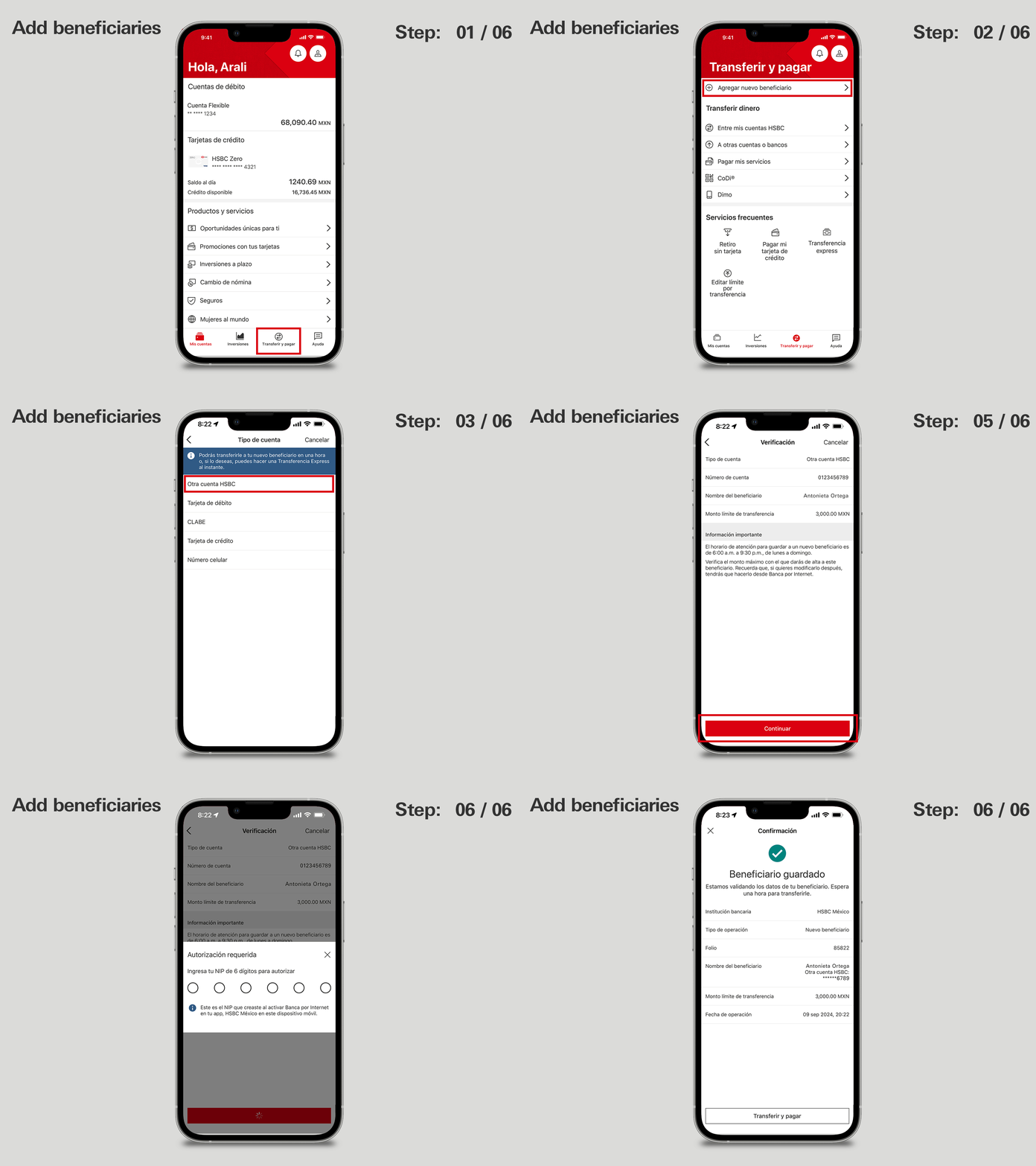
Add payees
Keep your frequent payees on hand for quick access
A) Add other HSBC accounts
- Go to your HSBC México app and select Transferir y pagar (Transfer and pay).
- Select Agregar nuevo beneficiario (Add new payee).
- Under Tipo de cuenta (Account type), select Otra cuenta HSBC (Another HSBC account).
- Fill in the required fields. When you reach Monto límite de transferencia (Transfer limit amount), enter the maximum amount you want to set for future transfers (not the amount you want to transfer at that moment), then click Continuar (Continue).
- Verify that all details are correct and select Continuar (Continue).
- Enter your 6-digit PIN, or use Fingerprint or Face ID if enabled.
Done! You’ve added your payee. You’ll need to wait 1 hour before you can make any transfers with this person.
Note: Payees can be added between 06:00 a.m. and 09:30 p.m.
B) Add using a CLABE, debit or credit card, or mobile number
- Open your HSBC México app and select Transferir y pagar (Transfer and pay).
- Click Agregar nuevo beneficiario (Add new payee).
- Under Tipo de cuenta (Account type), choose CLABE, debit or credit card, or mobile number.
- Complete the required fields. When you reach Monto límite de transferencia (Transfer limit amount), enter the maximum amount you want to set for future transfers (not the amount you want to transfer at that moment), then click Continuar (Continue).
- Check that the details are correct and select Continuar (Continue).
- Enter your 6-digit PIN, or use Fingerprint or Face ID if enabled.
Done! You’ve added your payee. You’ll need to wait 1 hour before you can make any transfers with this person.
Was this information helpful?
Update your details
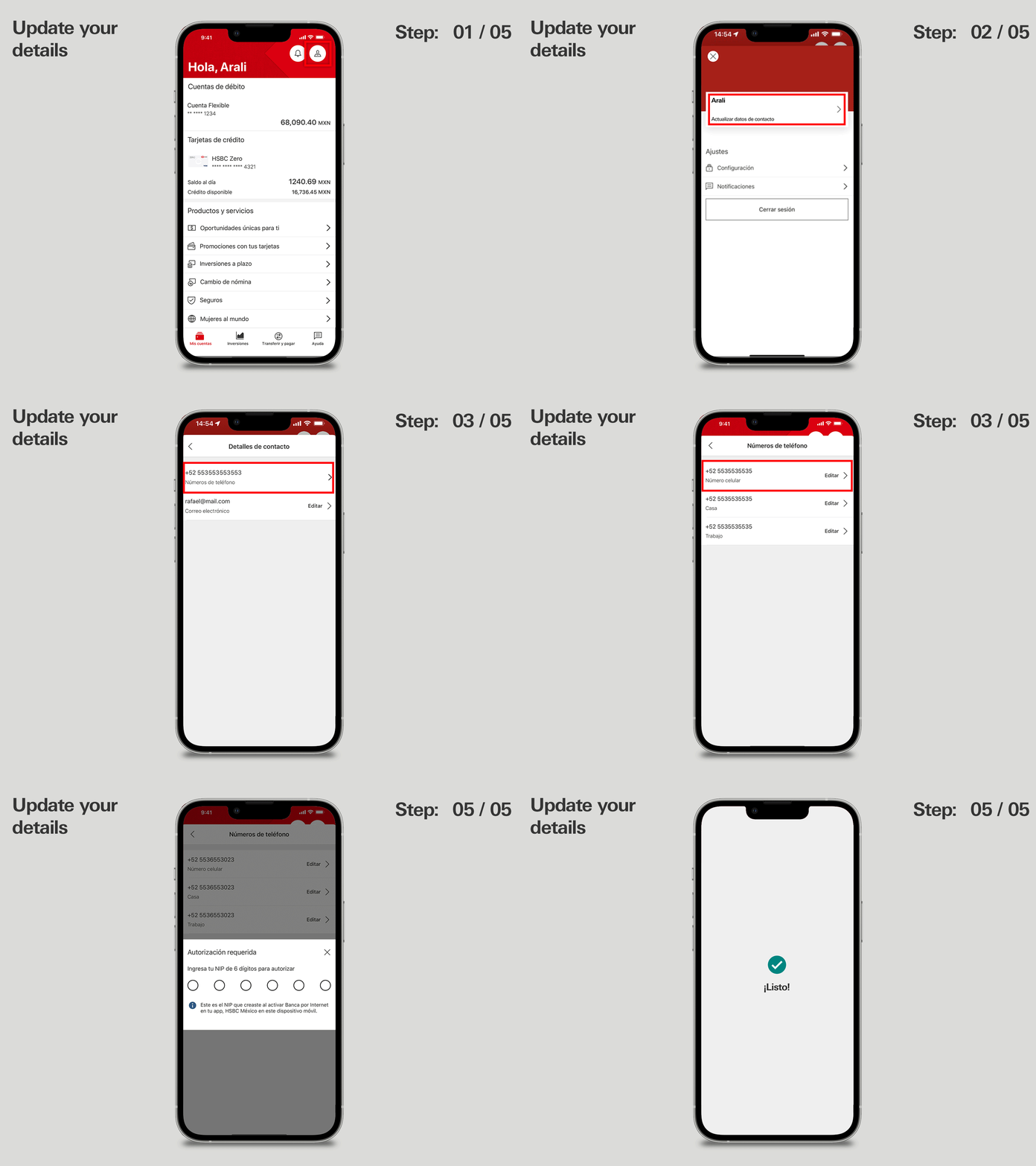
Stay up to date with the information that matters most to you
- Stay up to date with the information that matters most to you.
- Sign in and click your profile icon. You’ll find it in the top-right corner of the home screen in your HSBC México app.
- Click Actualizar datos de contacto (Update contact details, right under your name), then click Detalles de contacto (Contact details).
- Select the mobile number or email address you want to update.
- Enter your new mobile number or email address, then tap Continuar (Continue) and Guardar (Save).
- Authorize the change by entering your 6-digit PIN, or using your fingerprint, Face ID, or other biometric authentication (as available on your device).
Note: You can update your details Monday to Sunday, from 02:30 a.m. to 10:30 p.m.
Was this information helpful?
Enable notifications
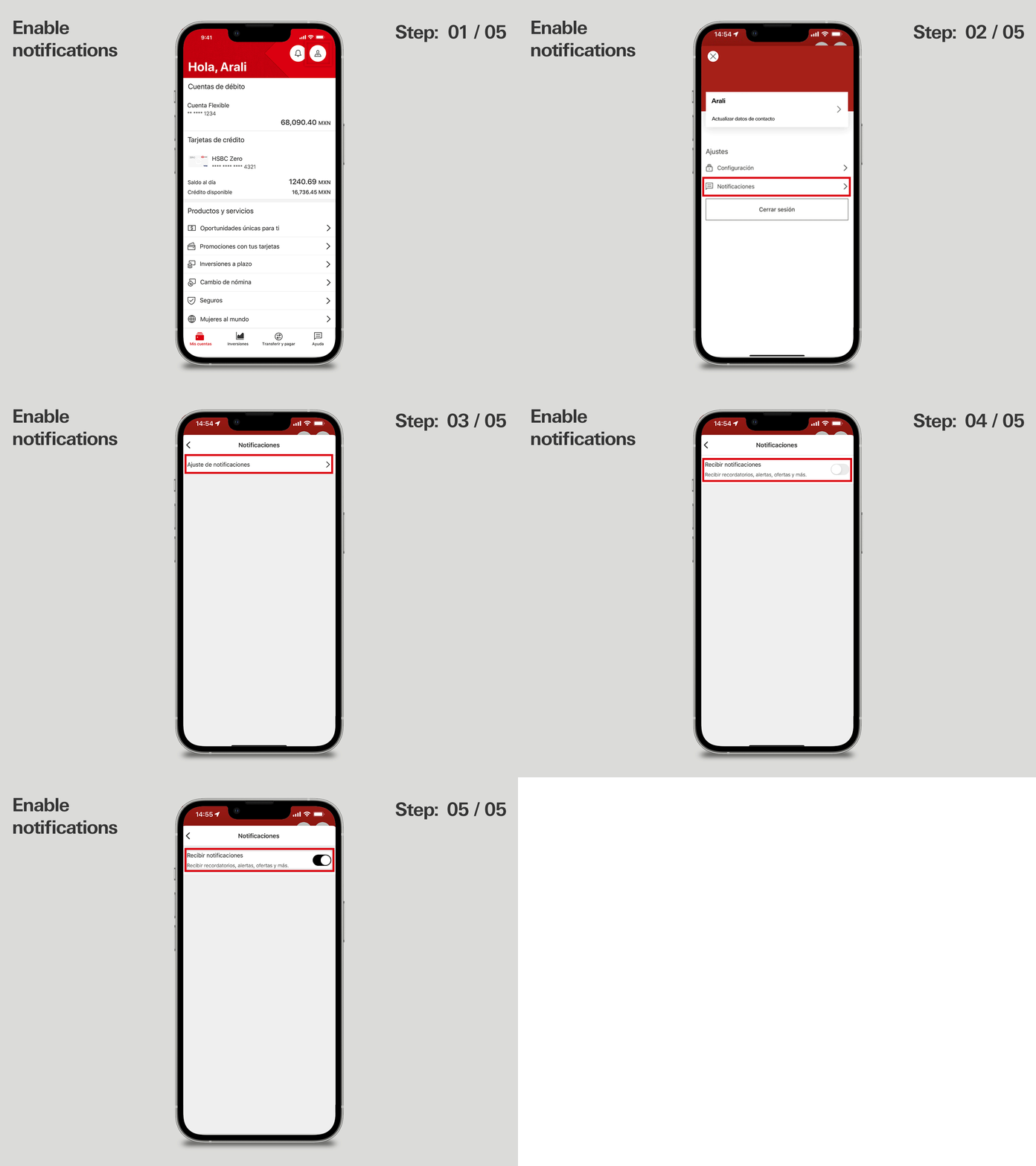
Always stay on top of offers and updates
- Sign in and click your profile icon. You’ll find it in the top-right corner of the home screen in your HSBC México app.
- In Ajustes (Settings), click Notificaciones (Notifications).
- Select Ajuste de notificaciones (Notification settings).
- Turn on Recibir notificaciones (Receive notifications).
- All set! You’ll now receive the latest offers and updates we have for you.
Was this information helpful?
Switch your salary payments
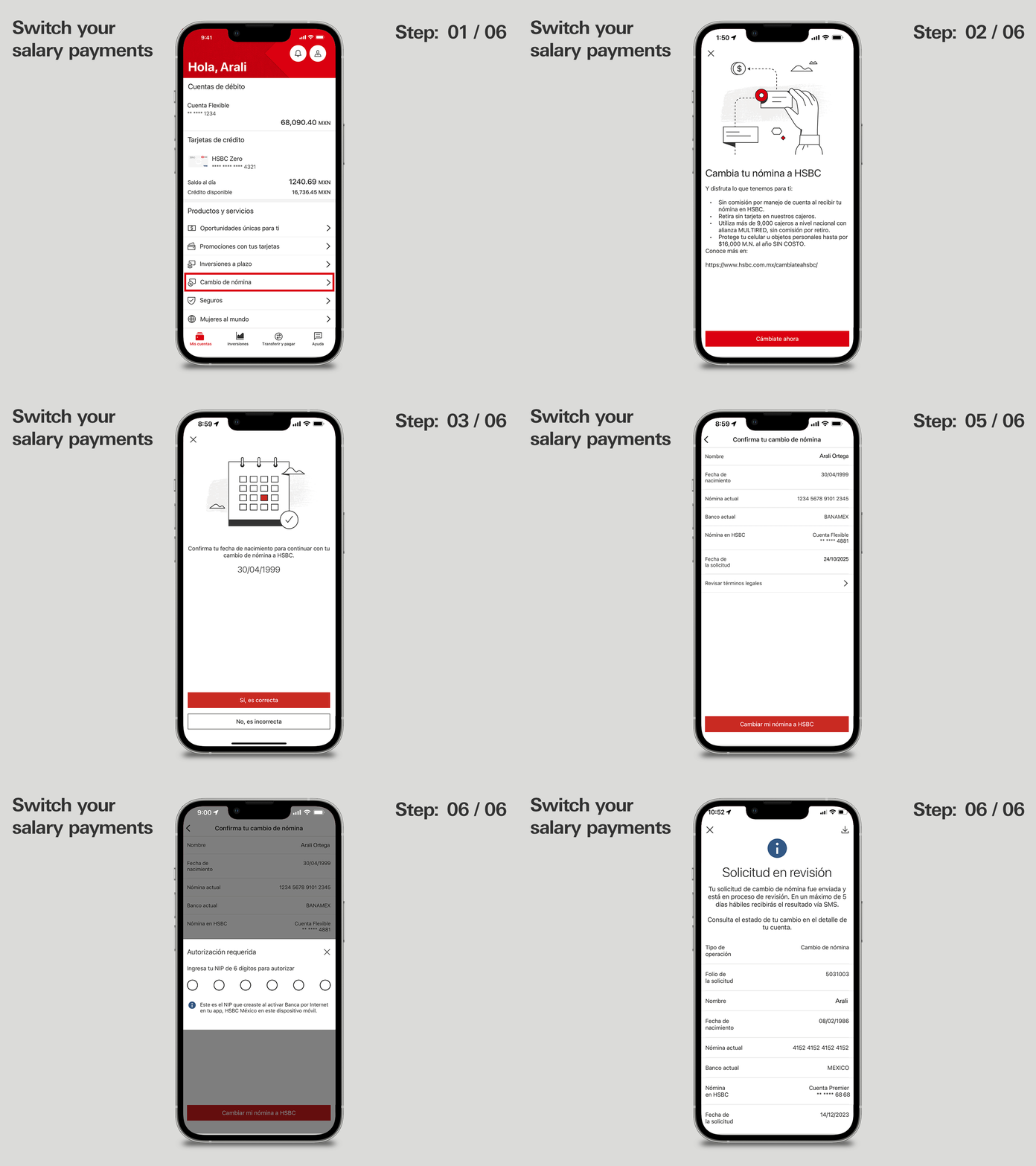
It doesn’t matter where your employer pays your salary - you choose where to receive your money!
- Open your HSBC México app and select Cambio de nómina (Salary switch).
- Learn about the benefits and click Cámbiate ahora (Switch now).
- Confirm your date of birth by selecting Sí, es correcta (Yes, it’s correct).
- Choose the HSBC Account where you want to receive your salary, and enter the debit card number or the CLABE of the other bank. Then click Continuar (Continue).
- Review your request details and confirm the salary switch by clicking Cambiar mi nómina a HSBC (Switch my salary to HSBC).
- Confirm with your 6-digit PIN, or using your fingerprint or Face ID.
All set! You’ve completed your salary switch request. Within a maximum of 5 business days, you’ll receive the result of your request via SMS.
Was this information helpful?
Enable Face ID or fingerprint recognition
Access your app more easily using your fingerprint or Face ID
- On your HSBC México app sign-in screen, select Activar Face ID o huella digital (Enable Face ID or fingerprint).
- Enter your 6-digit PIN.
- Select Activar ahora (Enable now).
- All set! You’ve successfully enabled Face ID or fingerprint sign-in.
Was this information helpful?
Manage your money
Make domestic and international transfers, view your HSBC Card statements, and download them anytime you want!
- Express Transfer
- Transfer and Pay
- Global Transfer
- Change your payment limit while sending money
- Statements
- Move your salary payments back to HSBC
Skip the wait. Make an Express Transfer for up to $12,000!
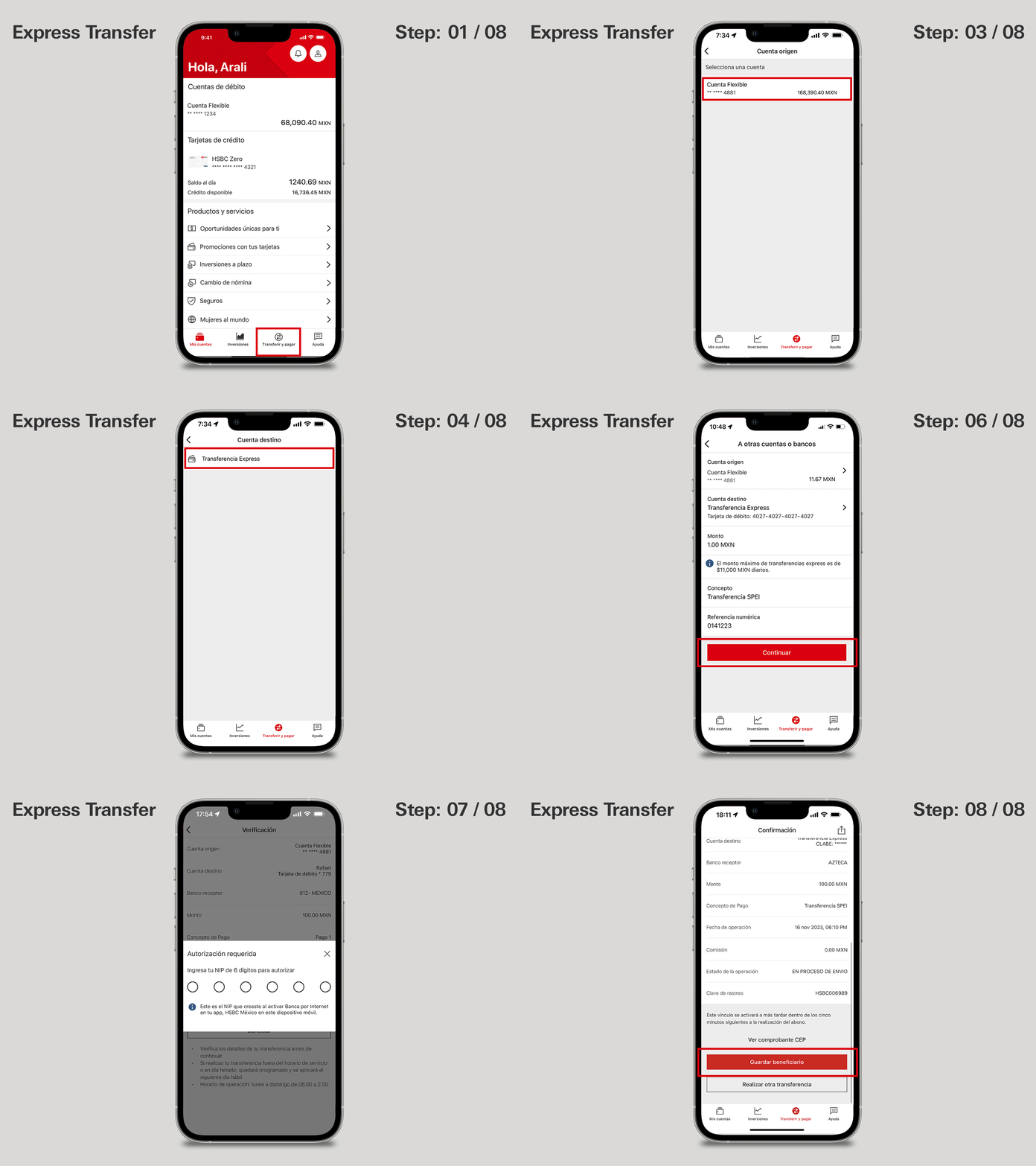
- Open your HSBC México app and go to Transferir y pagar (Transfer and Pay).
- Select Transferencia express (Express Transfer) under Servicios frecuentes (Frequent services).
- Choose the cuenta Origen (From account) you’ll use to make the transfer.
- Select the type of account you want to transfer to.
- Enter the required details based on the account type, then click Continuar (Continue).
- Check the details and confirm with your 6-digit PIN, or using your fingerprint or Face ID.
- All set! You’ve made your Express Transfer.
Note: We suggest clicking Guardar beneficiario (Save payee) so you don’t have to deal with transfer limits and waiting times.
Was this information helpful?
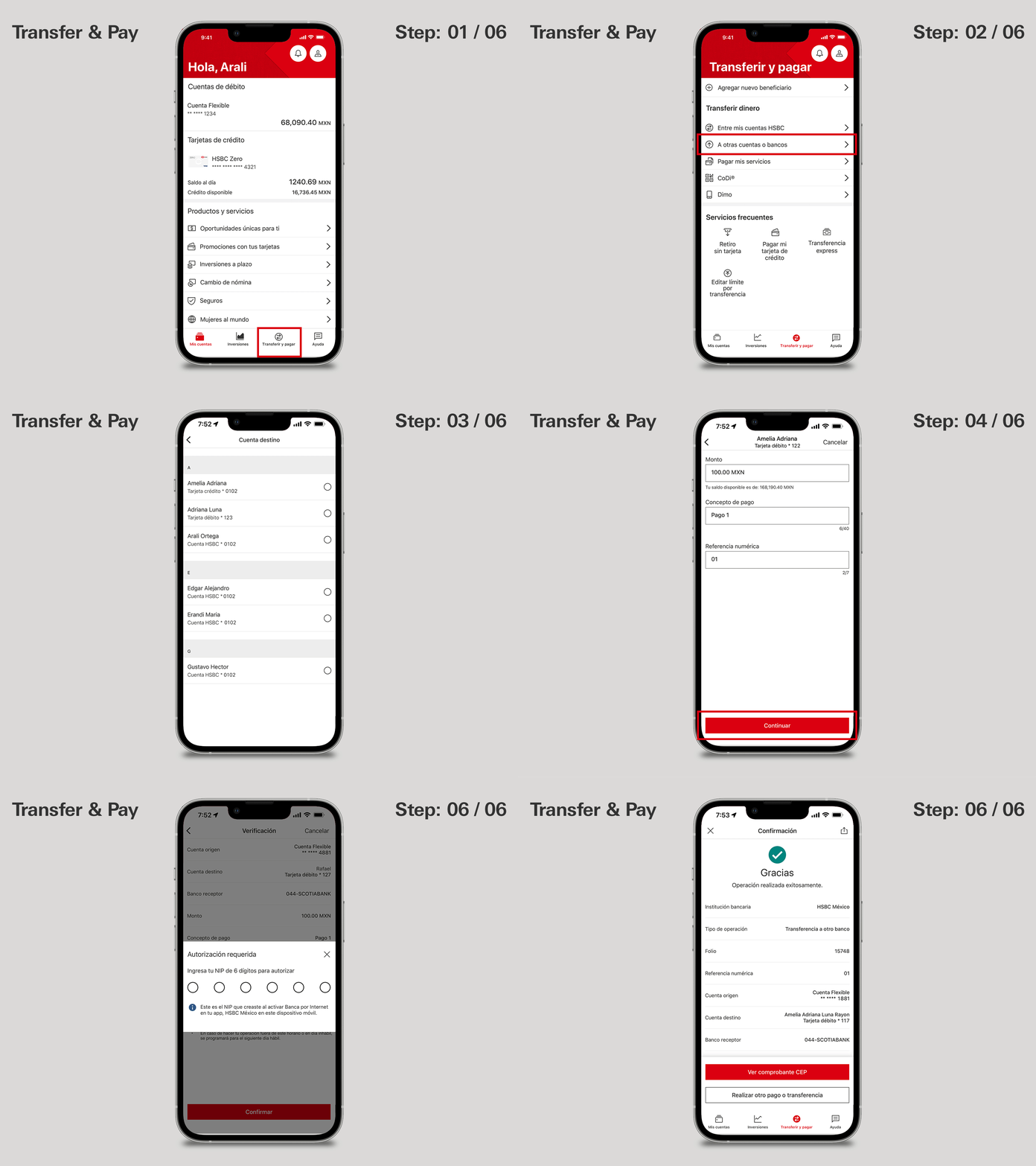
Transfer and Pay
- Open your HSBC México app and go to Transferir y pagar (Transfer and Pay.)
- Select A otras cuentas o bancos (To other accounts or banks).
- Choose the cuenta Origen (From account, where the money will be taken from) and select the cuenta Destino (To account).
- Enter the monto (amount) to transfer, the Concepto de pago (Payment description), the Referencia numérica (Numeric reference), then click Continuar (Continue).
- Check the details and select Continuar (Continue).
- Confirm with your 6-digit PIN, or using your fingerprint or Face ID.
- All set! Your transfer was completed successfully.
Note: Transfers can be made 24/7.
Was this information helpful?
Make international transfers with Global Transfer
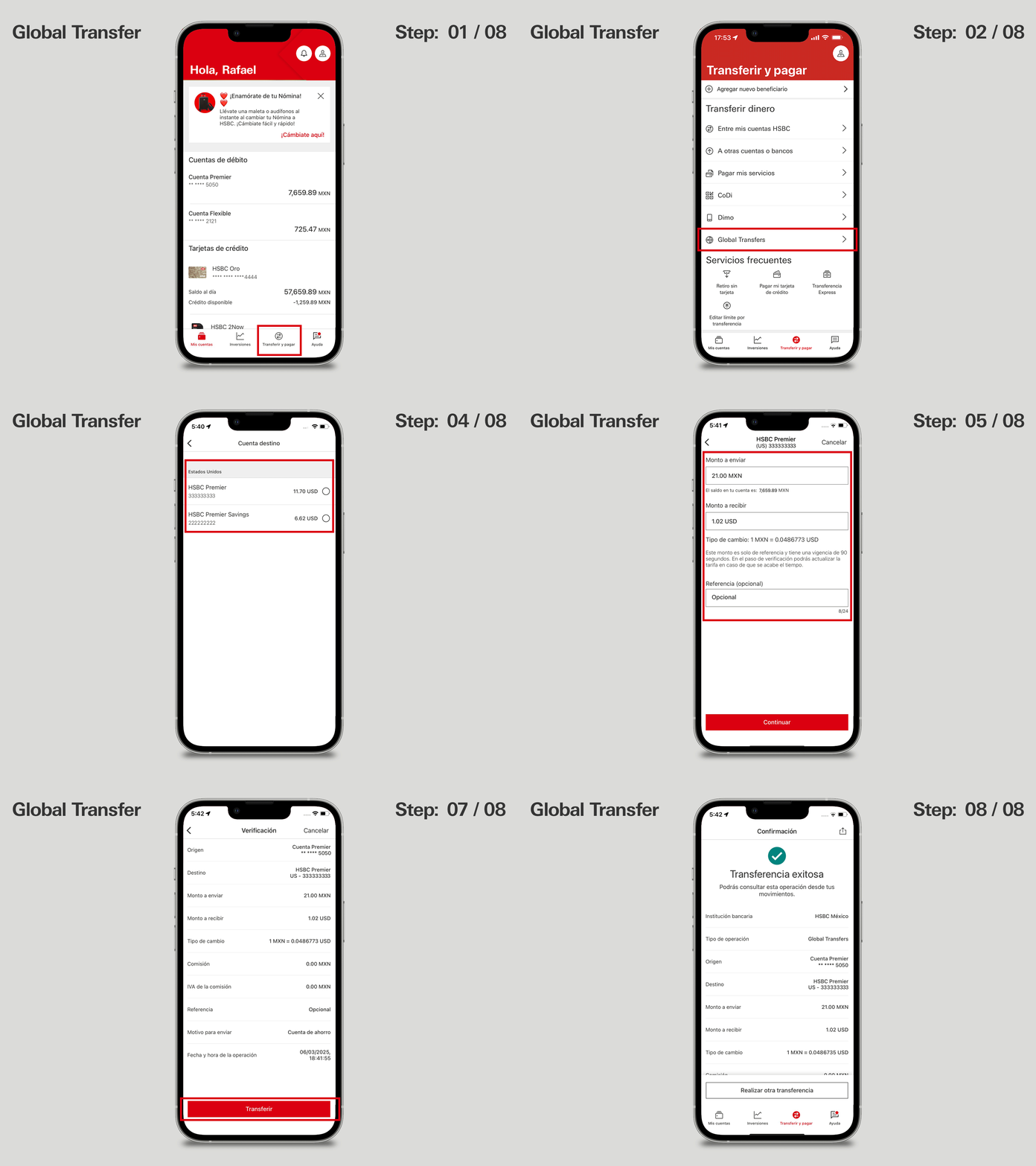
- Open your HSBC México app and go to Transferir y pagar (Transfer and Pay).
- Select Global Transfers.
- Select the cuenta Origen (From account).
- Select the cuenta Destino (To account).
- Enter the requested details and click Continuar (Continue).
- Select the Motivo para enviar (Reason for sending).
- Check that the details are correct and click Transferir (Transfer).
- All set! Your transfer was completed successfully.
Was this information helpful?
A) Change your payment limit while sending money
If you tried to send money but went over your payment limit, don’t worry: you can update it in seconds with these steps
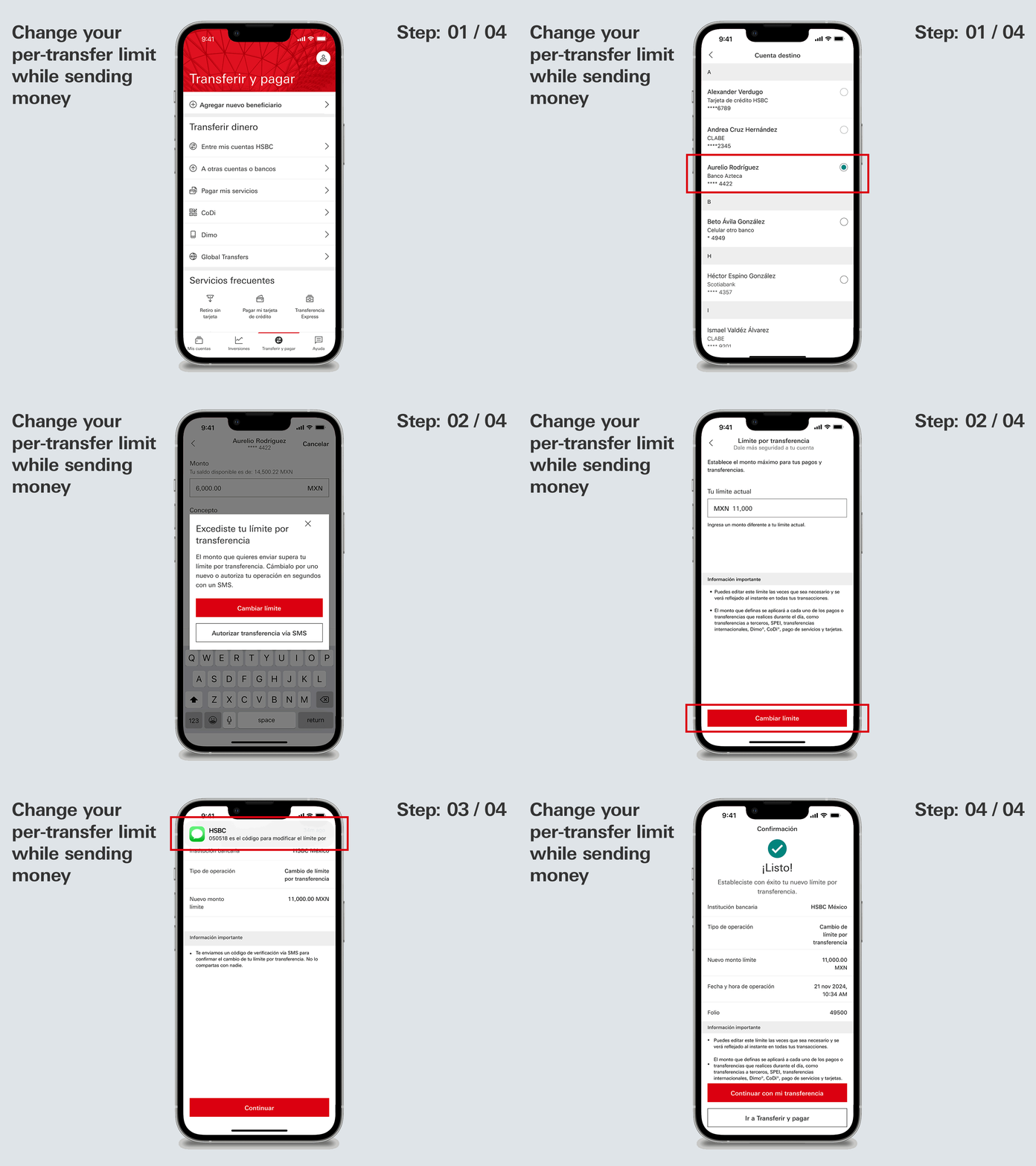
- When you try to send an amount higher than your payment limit, you’ll see a screen with an information message and two buttons. Click Cambiar límite (Change limit).
- Enter your new limit and click Cambiar límite (Change limit).
- Check the details, then enter the verification code we’ll send you by SMS and click Continuar (Continue).
- Done! You can carry on from where you left off.
B) Change your payment limit before sending money
We know prevention matters, so you can update your payment limit as many times as you need in just a few steps:
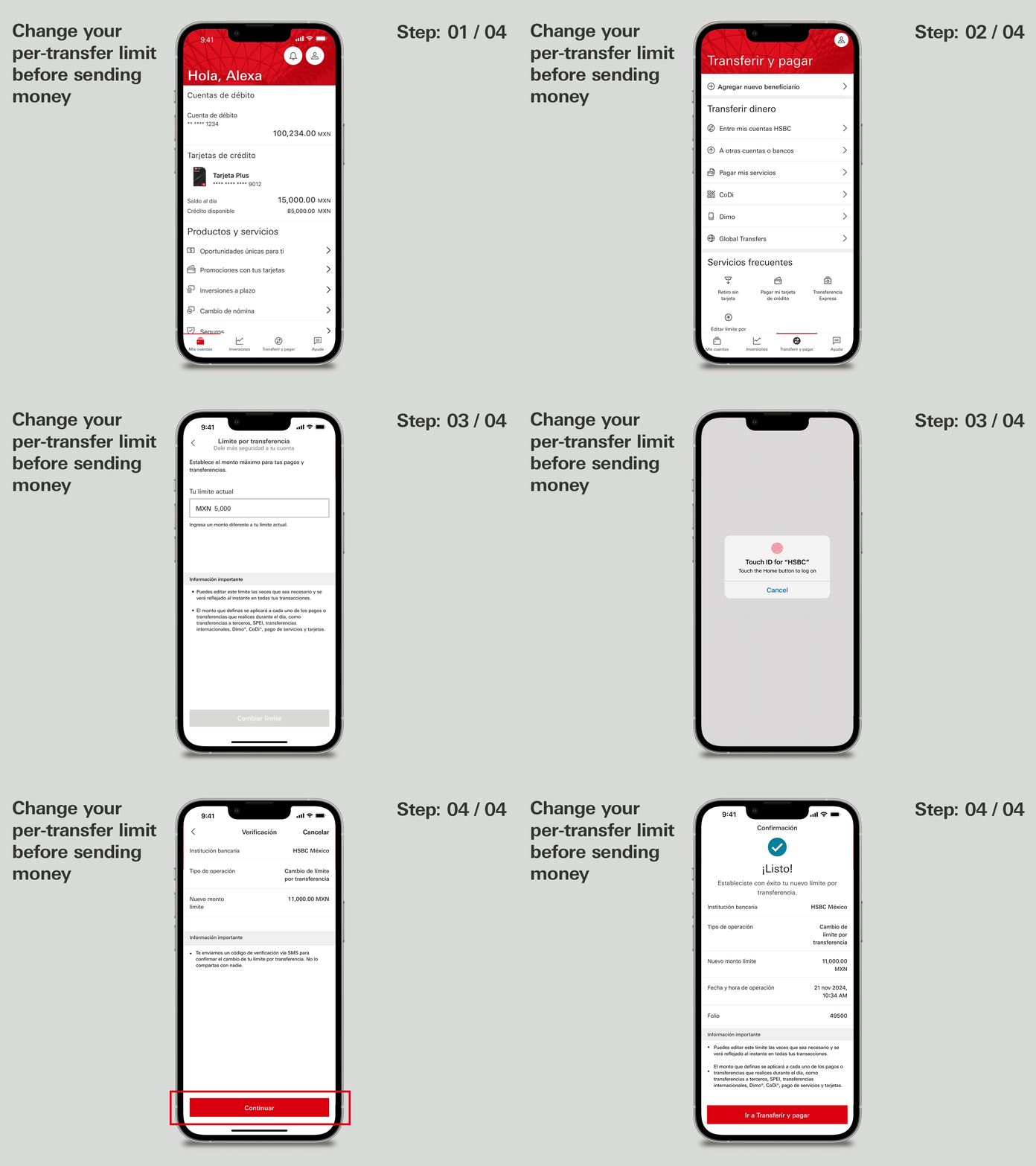
- Open your HSBC México app and click Transferir y pagar (Transfer and Pay).
- Click Editar límite por transferencia (Change payment limit), where you can view your current limit.
- If needed, enter the new amount and click Cambiar límite (Change limit).
- Review your details and enter the code we sent you via SMS.
- That’s it! You’ve updated your payment limit.
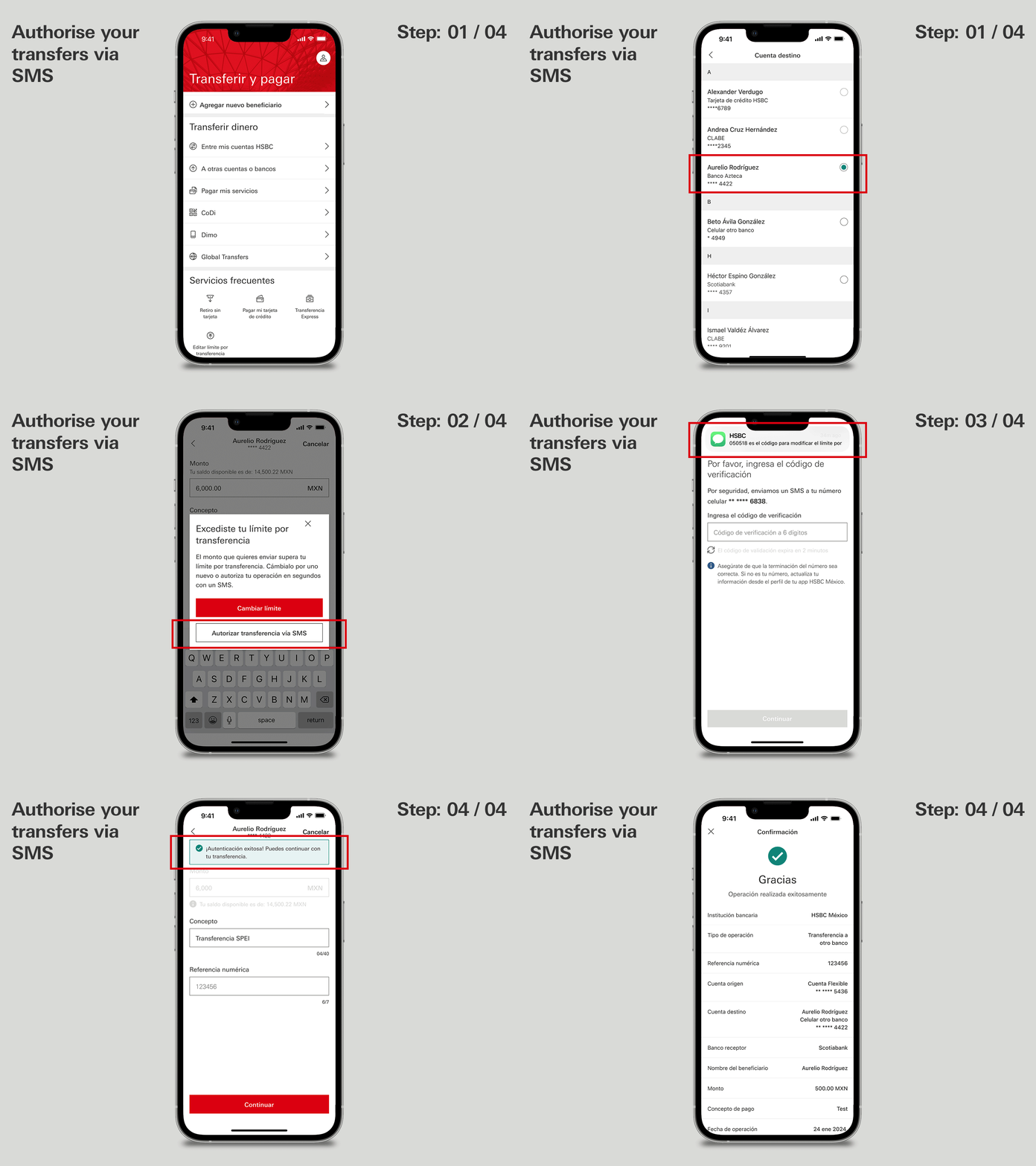
C) Authorize your transfer via SMS
If you want to send money in seconds without changing your payment limit, this option is for you. Follow these steps!
- When you try to send an amount higher than your payment limit, you’ll see a screen with an information message and two buttons.
- Select Autorizar transferencia vía SMS (Authorize transfer via SMS), review your details, and click Continuar (Continue) on the verification screen.
- Enter the code we sent you via SMS and click Continuar (Continue).
- All set! You can continue your transfer from where you left off.
Was this information helpful?
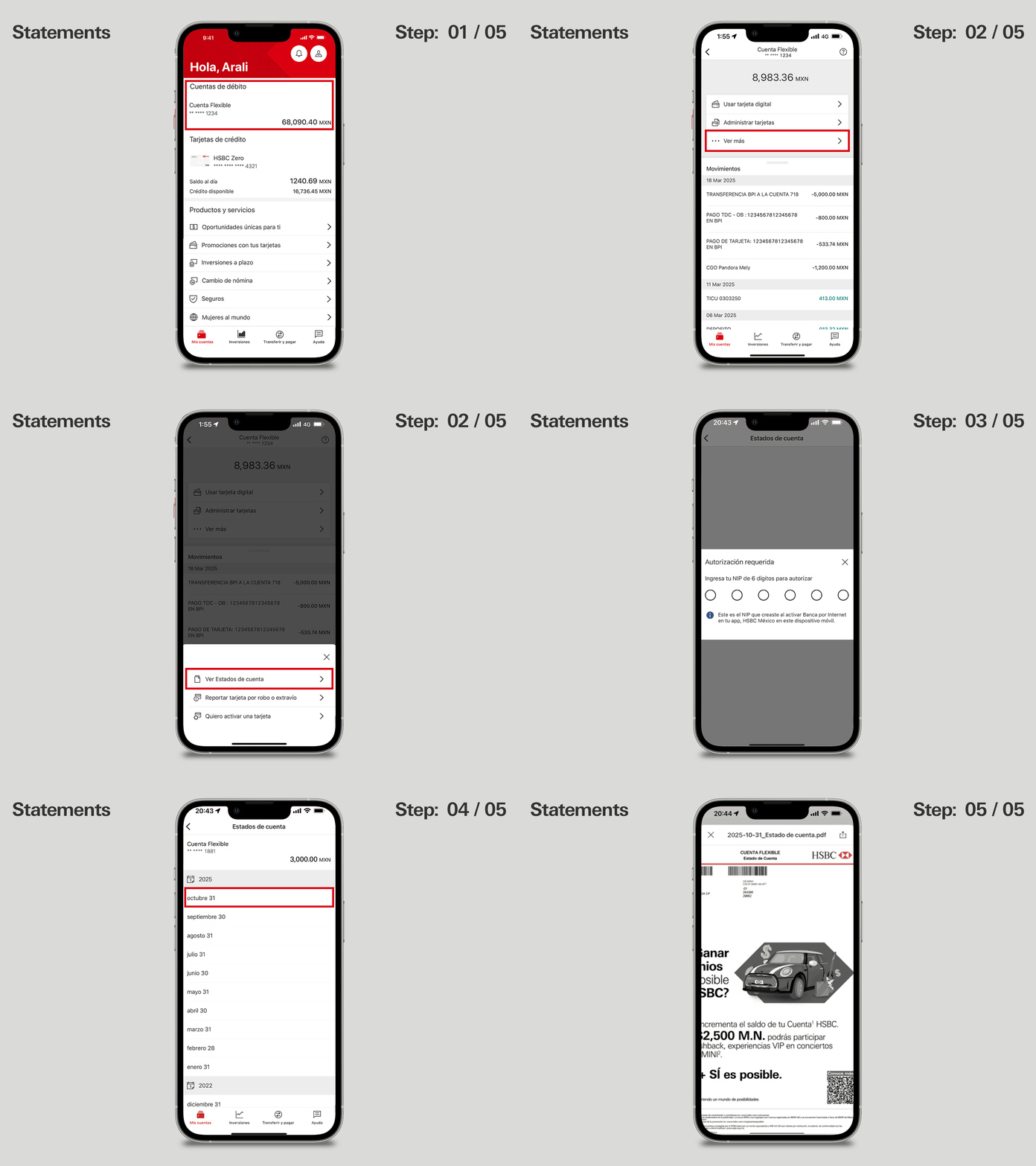
View and download your statements. No need to visit a branch!
- Sign in to your HSBC México app and choose the debit account or credit card you want to view.
- On the details screen, click Ver más (See more) and select Ver Estados de cuenta (View statements).
- Confirm with your 6-digit PIN, or using your fingerprint or Face ID.
- Select the current month or a previous one. You can view statements from up to the last 12 months.
- All set! Your statement is ready. Download it to your phone and view it instantly.
Note: You can only view statements for debit accounts and credit cards in the app. If you need to check any other statements, you can do so in Online Banking, learn how here.
Was this information helpful?
Moved your salary payments to another bank? Bring them back to HSBC in just a few steps!
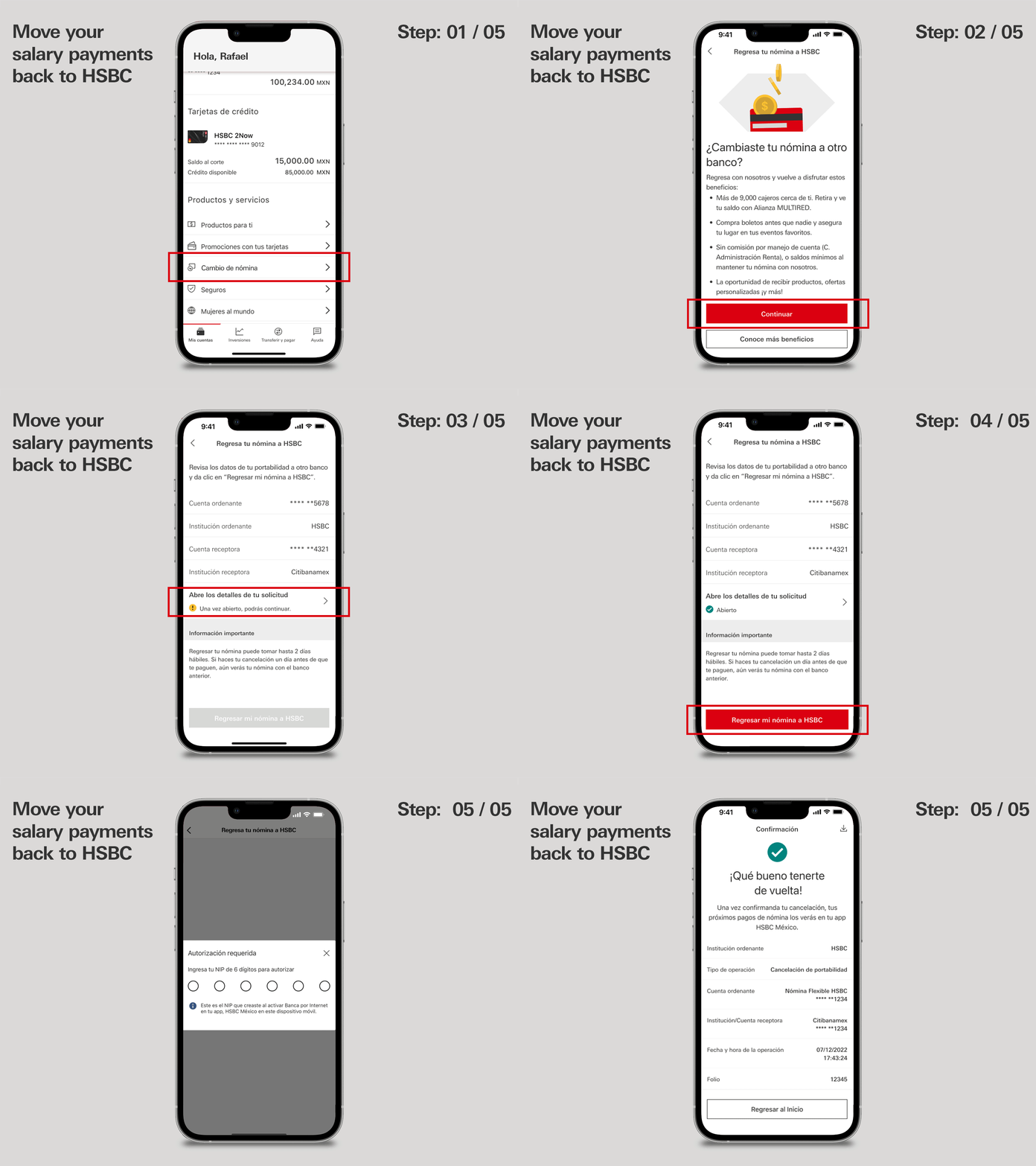
- Open your HSBC México app and select Cambio de nómina (Salary switch).
- Read the benefits and click Continuar (Continue).
- Open the request details. Once they’re open, select Entendido (Got it).
- Select Regresar mi nómina a HSBC (Move my salary payments back to HSBC).
- Confirm with your 6-digit PIN, or using your fingerprint or Face ID.
All set! You’ve completed your request to move your salary payments back to HSBC. The service will be cancelled within a maximum of two business days.
Was this information helpful?
Express Transfer
Skip the wait. Make an Express Transfer for up to $12,000!
- Open your HSBC México app and go to Transferir y pagar (Transfer and Pay).
- Select Transferencia express (Express Transfer) under Servicios frecuentes (Frequent services).
- Choose the cuenta Origen (From account) you’ll use to make the transfer.
- Select the type of account you want to transfer to.
- Enter the required details based on the account type, then click Continuar (Continue).
- Check the details and confirm with your 6-digit PIN, or using your fingerprint or Face ID.
- All set! You’ve made your Express Transfer.
Note: We suggest clicking Guardar beneficiario (Save payee) so you don’t have to deal with transfer limits and waiting times.
Was this information helpful?
Transfer and Pay
Transfer and Pay
- Open your HSBC México app and go to Transferir y pagar (Transfer and Pay.)
- Select A otras cuentas o bancos (To other accounts or banks).
- Choose the cuenta Origen (From account, where the money will be taken from) and select the cuenta Destino (To account).
- Enter the monto (amount) to transfer, the Concepto de pago (Payment description), the Referencia numérica (Numeric reference), then click Continuar (Continue).
- Check the details and select Continuar (Continue).
- Confirm with your 6-digit PIN, or using your fingerprint or Face ID.
- All set! Your transfer was completed successfully.
Note: Transfers can be made 24/7.
Was this information helpful?
Global Transfer
Make international transfers with Global Transfer
- Open your HSBC México app and go to Transferir y pagar (Transfer and Pay).
- Select Global Transfers.
- Select the cuenta Origen (From account).
- Select the cuenta Destino (To account).
- Enter the requested details and click Continuar (Continue).
- Select the Motivo para enviar (Reason for sending).
- Check that the details are correct and click Transferir (Transfer).
- All set! Your transfer was completed successfully.
Was this information helpful?
Change your payment limit while sending money
A) Change your payment limit while sending money
If you tried to send money but went over your payment limit, don’t worry: you can update it in seconds with these steps
- When you try to send an amount higher than your payment limit, you’ll see a screen with an information message and two buttons. Click Cambiar límite (Change limit).
- Enter your new limit and click Cambiar límite (Change limit).
- Check the details, then enter the verification code we’ll send you by SMS and click Continuar (Continue).
- Done! You can carry on from where you left off.
B) Change your payment limit before sending money
We know prevention matters, so you can update your payment limit as many times as you need in just a few steps:
- Open your HSBC México app and click Transferir y pagar (Transfer and Pay).
- Click Editar límite por transferencia (Change payment limit), where you can view your current limit.
- If needed, enter the new amount and click Cambiar límite (Change limit).
- Review your details and enter the code we sent you via SMS.
- That’s it! You’ve updated your payment limit.
C) Authorize your transfer via SMS
If you want to send money in seconds without changing your payment limit, this option is for you. Follow these steps!
- When you try to send an amount higher than your payment limit, you’ll see a screen with an information message and two buttons.
- Select Autorizar transferencia vía SMS (Authorize transfer via SMS), review your details, and click Continuar (Continue) on the verification screen.
- Enter the code we sent you via SMS and click Continuar (Continue).
- All set! You can continue your transfer from where you left off.
Was this information helpful?
Statements
View and download your statements. No need to visit a branch!
- Sign in to your HSBC México app and choose the debit account or credit card you want to view.
- On the details screen, click Ver más (See more) and select Ver Estados de cuenta (View statements).
- Confirm with your 6-digit PIN, or using your fingerprint or Face ID.
- Select the current month or a previous one. You can view statements from up to the last 12 months.
- All set! Your statement is ready. Download it to your phone and view it instantly.
Note: You can only view statements for debit accounts and credit cards in the app. If you need to check any other statements, you can do so in Online Banking, learn how here.
Was this information helpful?
Move your salary payments back to HSBC
Moved your salary payments to another bank? Bring them back to HSBC in just a few steps!
- Open your HSBC México app and select Cambio de nómina (Salary switch).
- Read the benefits and click Continuar (Continue).
- Open the request details. Once they’re open, select Entendido (Got it).
- Select Regresar mi nómina a HSBC (Move my salary payments back to HSBC).
- Confirm with your 6-digit PIN, or using your fingerprint or Face ID.
All set! You’ve completed your request to move your salary payments back to HSBC. The service will be cancelled within a maximum of two business days.
Was this information helpful?
Manage and stay in control of your HSBC Cards
Withdraw cash without your card, pay your credit card, create a digital version for online purchases, and more.
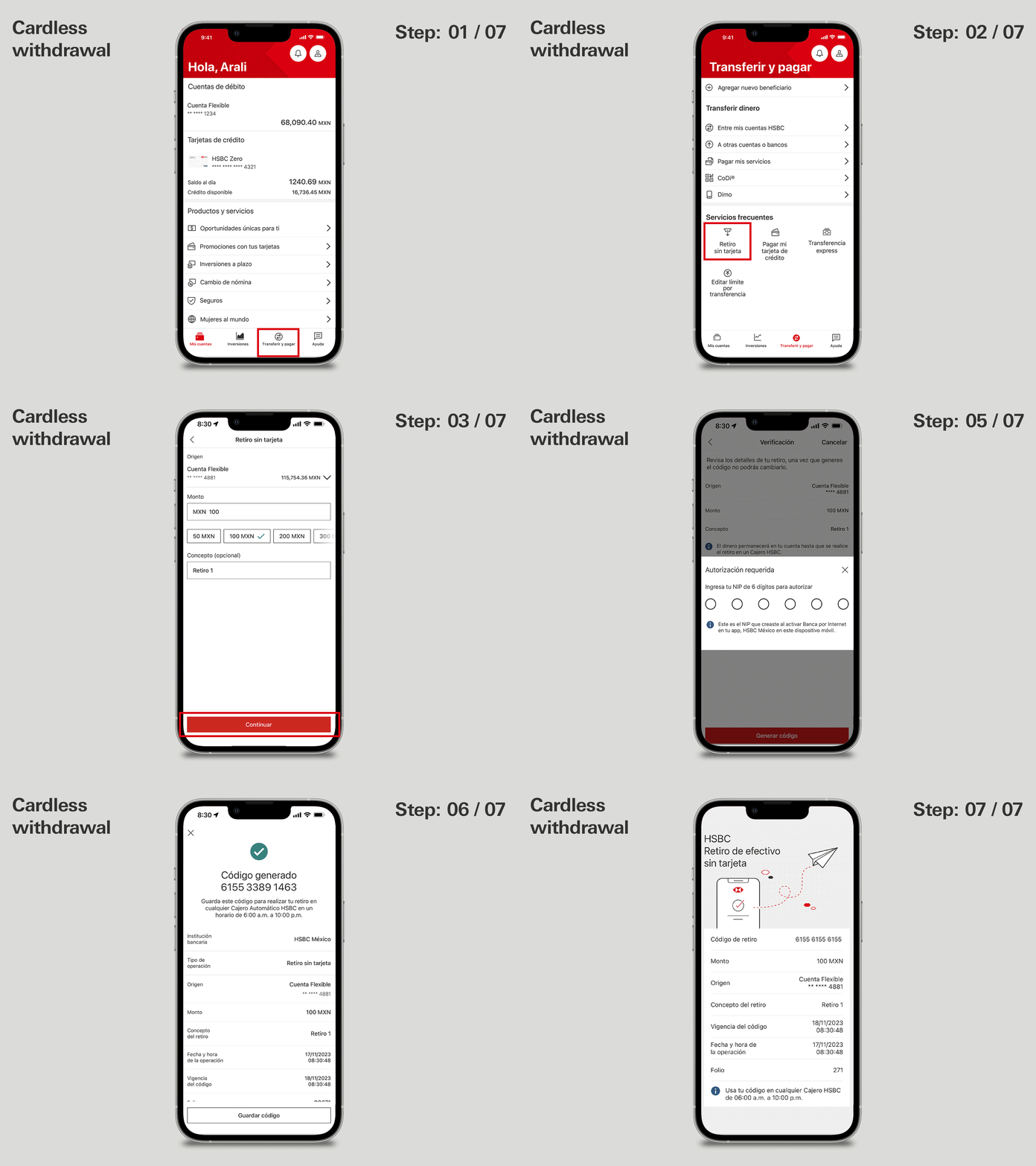
Forgot your card at home? Don’t worry! You can still get cash with no hassle
- Sign in to your HSBC México app and go to Transferir y pagar (Transfer and Pay).
- Under Servicios frecuentes (Frequent services), select Retiro sin tarjeta (Cardless withdrawal).
- Select the cuenta Origen (From account, where the money will be taken from), enter the monto (amount) you want to withdraw, add the concepto (description), and click Continuar (Continue).
- Check that the details are correct and click Generar código (Generate code).
- Confirm with your 6-digit PIN, or using your fingerprint or Face ID.
- All set! You’ve generated your code for a cardless withdrawal. We suggest saving it, because you won’t be able to view it again.
- Go to your nearest ATM, enter the code, and withdraw your cash.
Note: Cardless withdrawals are available at any HSBC ATM from 6:00 a.m. to 10:00 p.m.
Was this information helpful?
Active your card and use it right away
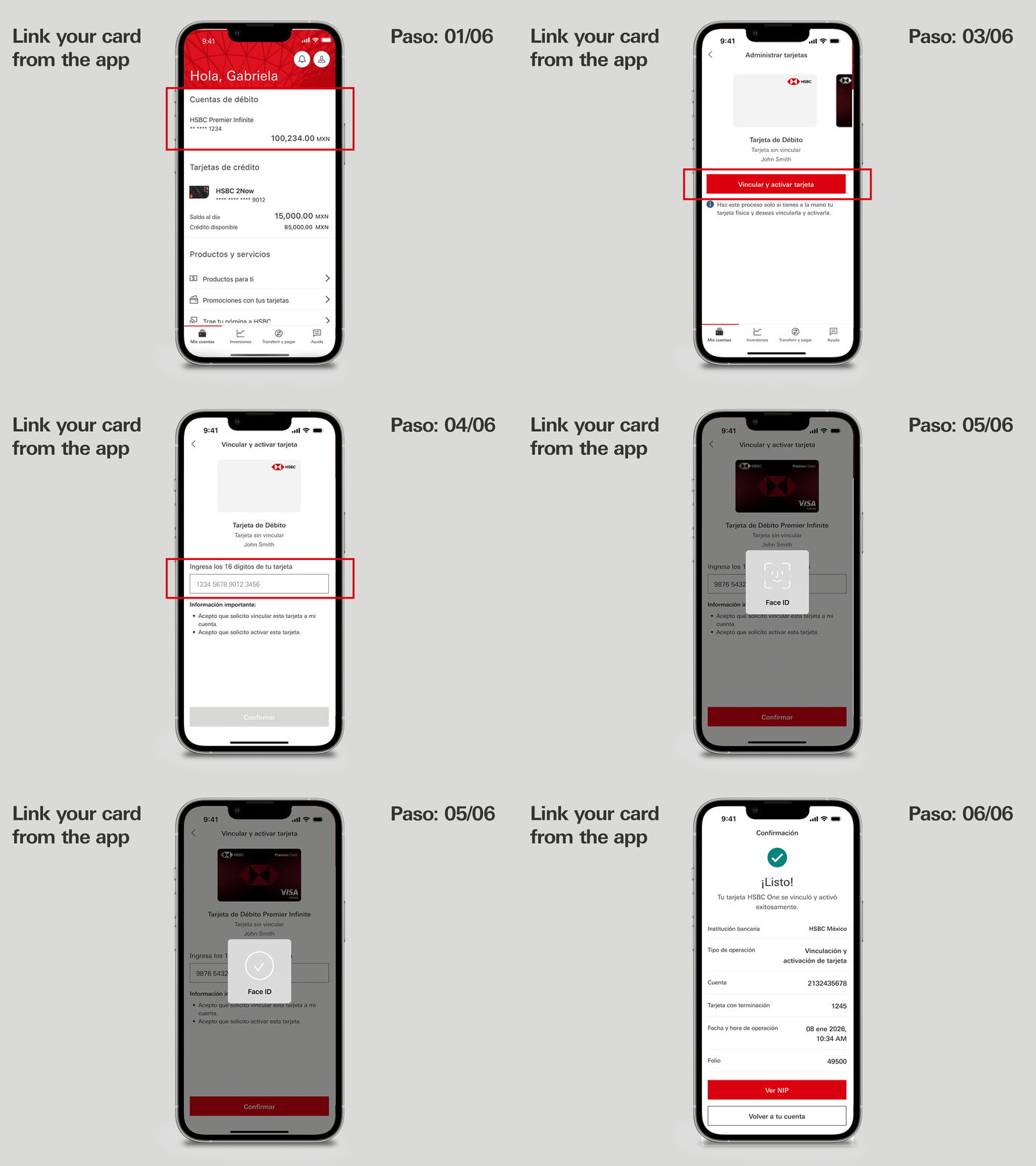
- Open your HSBC México app and select the account linked to the card you want to activate.
- Select Administrar tarjetas (Manage Cards).
- Click Activar tarjeta (Activate card) to start the activation process.
- Enter the expiry date shown on your physical card and click Activar tarjeta (Activate card).
- Confirm with your 6-digit PIN, or using your fingerprint or Face ID.
- All set! Your card has been activated and you can start using it immediately.
Questions? Find answers here
Note: Keep your physical card handy to enter the expiry date correctly.
Was this information helpful?
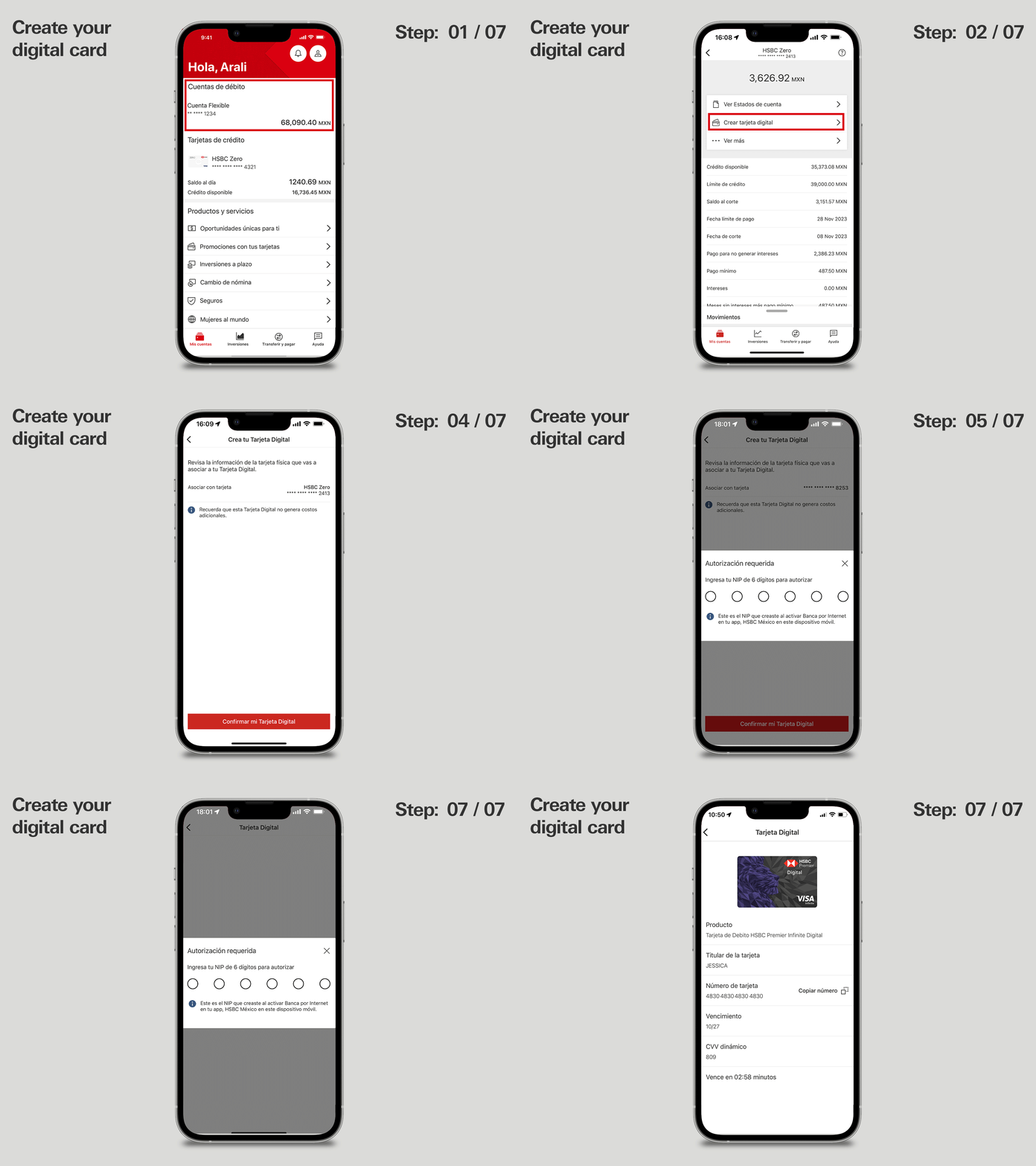
Make your online purchases more secure with your digital card, which has a dynamic CVV2 that changes every two minutes
- Open your HSBC México app and choose the credit or debit card you want to link to your digital card. You can create only one digital card for each physical HSBC card you have.
- Select Crear tarjeta digital (Create digital card).
- Read the benefits and click Crearla ahora (Create now).
- Verify the details of the physical card you’re linking, then click Confirmar mi tarjeta digital (Confirm my digital card).
- Confirm with your 6-digit PIN, or using your fingerprint or Face ID.
- All set! You’ve created your digital card. Use it for your online purchases.
- To view your digital card details, click Ver tarjeta digital (View digital card) and sign in again with your 6-digit PIN, or using your fingerprint or Face ID.
Was this information helpful?
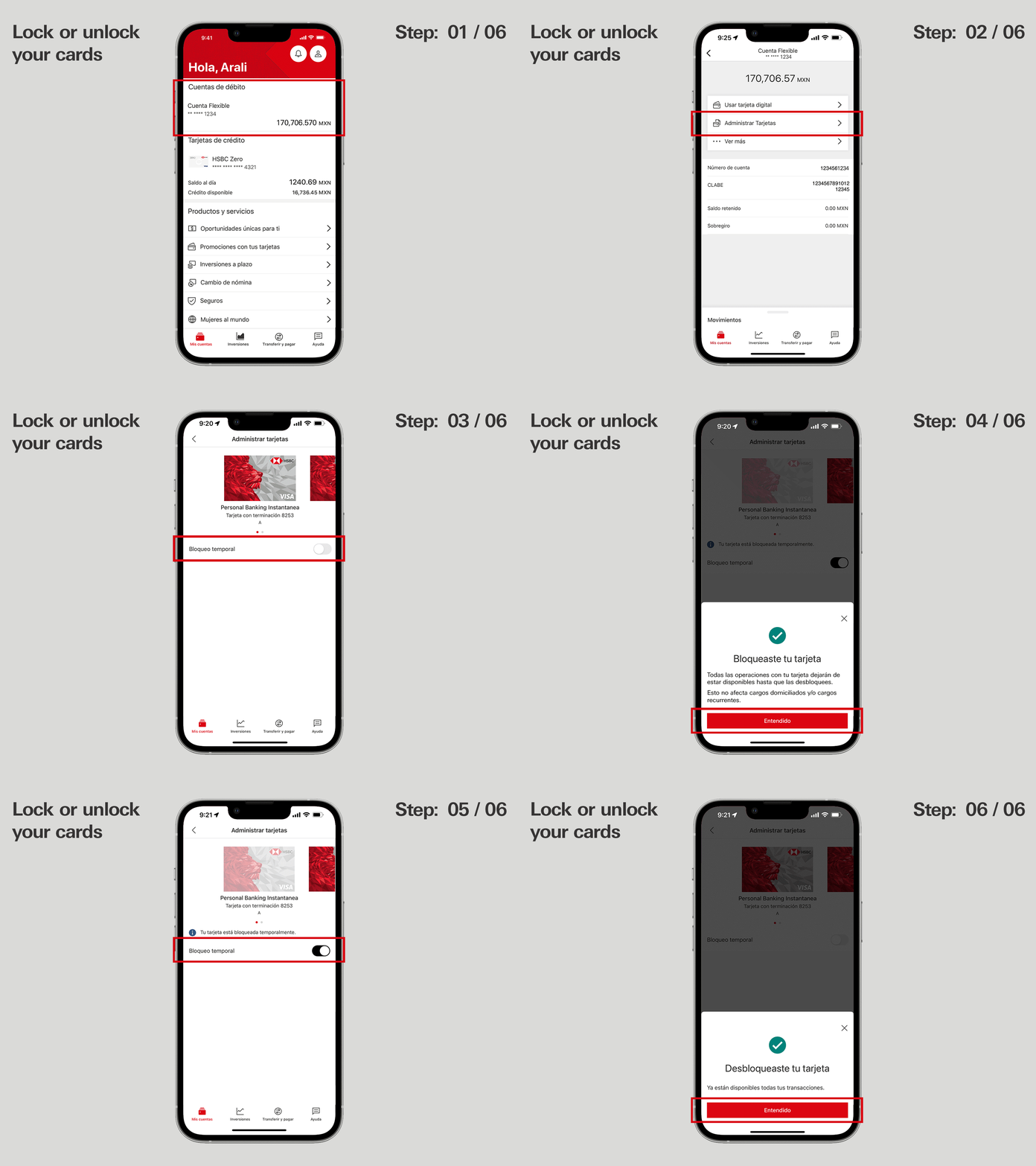
Stay in control of your card(s) with the block and unblock service in your app
- Open your HSBC México app and choose the account linked to the debit or credit card you want to manage.
- Select Administrar tarjetas (Manage Cards).
- Turn on Bloqueo temporal (Temporary block) for the card you want to lock.
- Tap Entendido (Got it) — all set!
- If you want to unlock it, turn off Bloqueo temporal (Temporary lock).
- Your card is now unlocked! Tap Entendido (Got it) to continue using your card.
While your card is locked, you’re protected because no purchases will be authorized.
Questions? Find answers here.
Was this information helpful?
Cardless withdrawal
Forgot your card at home? Don’t worry! You can still get cash with no hassle
- Sign in to your HSBC México app and go to Transferir y pagar (Transfer and Pay).
- Under Servicios frecuentes (Frequent services), select Retiro sin tarjeta (Cardless withdrawal).
- Select the cuenta Origen (From account, where the money will be taken from), enter the monto (amount) you want to withdraw, add the concepto (description), and click Continuar (Continue).
- Check that the details are correct and click Generar código (Generate code).
- Confirm with your 6-digit PIN, or using your fingerprint or Face ID.
- All set! You’ve generated your code for a cardless withdrawal. We suggest saving it, because you won’t be able to view it again.
- Go to your nearest ATM, enter the code, and withdraw your cash.
Note: Cardless withdrawals are available at any HSBC ATM from 6:00 a.m. to 10:00 p.m.
Was this information helpful?
Activate your card
Active your card and use it right away
- Open your HSBC México app and select the account linked to the card you want to activate.
- Select Administrar tarjetas (Manage Cards).
- Click Activar tarjeta (Activate card) to start the activation process.
- Enter the expiry date shown on your physical card and click Activar tarjeta (Activate card).
- Confirm with your 6-digit PIN, or using your fingerprint or Face ID.
- All set! Your card has been activated and you can start using it immediately.
Questions? Find answers here
Note: Keep your physical card handy to enter the expiry date correctly.
Was this information helpful?
Create your digital card
Make your online purchases more secure with your digital card, which has a dynamic CVV2 that changes every two minutes
- Open your HSBC México app and choose the credit or debit card you want to link to your digital card. You can create only one digital card for each physical HSBC card you have.
- Select Crear tarjeta digital (Create digital card).
- Read the benefits and click Crearla ahora (Create now).
- Verify the details of the physical card you’re linking, then click Confirmar mi tarjeta digital (Confirm my digital card).
- Confirm with your 6-digit PIN, or using your fingerprint or Face ID.
- All set! You’ve created your digital card. Use it for your online purchases.
- To view your digital card details, click Ver tarjeta digital (View digital card) and sign in again with your 6-digit PIN, or using your fingerprint or Face ID.
Was this information helpful?
Block or unblock your cards
Stay in control of your card(s) with the block and unblock service in your app
- Open your HSBC México app and choose the account linked to the debit or credit card you want to manage.
- Select Administrar tarjetas (Manage Cards).
- Turn on Bloqueo temporal (Temporary block) for the card you want to lock.
- Tap Entendido (Got it) — all set!
- If you want to unlock it, turn off Bloqueo temporal (Temporary lock).
- Your card is now unlocked! Tap Entendido (Got it) to continue using your card.
While your card is locked, you’re protected because no purchases will be authorized.
Questions? Find answers here.
Was this information helpful?
We’re here to help via chat
Get the help you need, just a few taps away!
- Contact us via chat
- My card was declined
- Report your card
- Track your card delivery
- Get insurance tailored to you
- Access FAQs
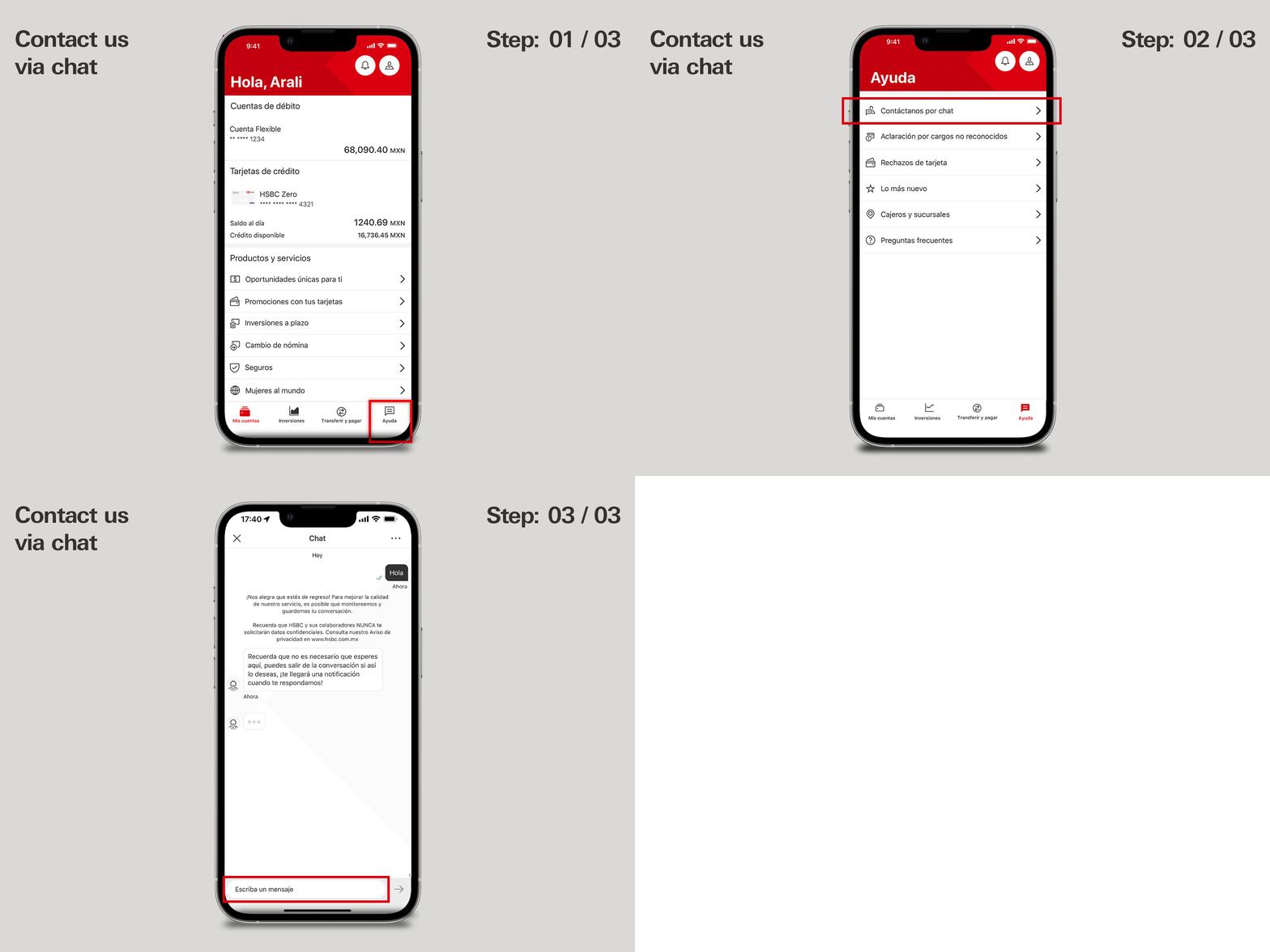
If you have general questions, we can help you via chat
- Open your HSBC México app and go to Ayuda (Help).
- Select Contáctanos por chat (Contact us via chat).
- Start the conversation to get answers to your questions and complete certain transactions with real-time support from our agents.
Note: You can leave the chat while your query is being assigned to an agent; there’s no need to stay online and wait!
Was this information helpful?
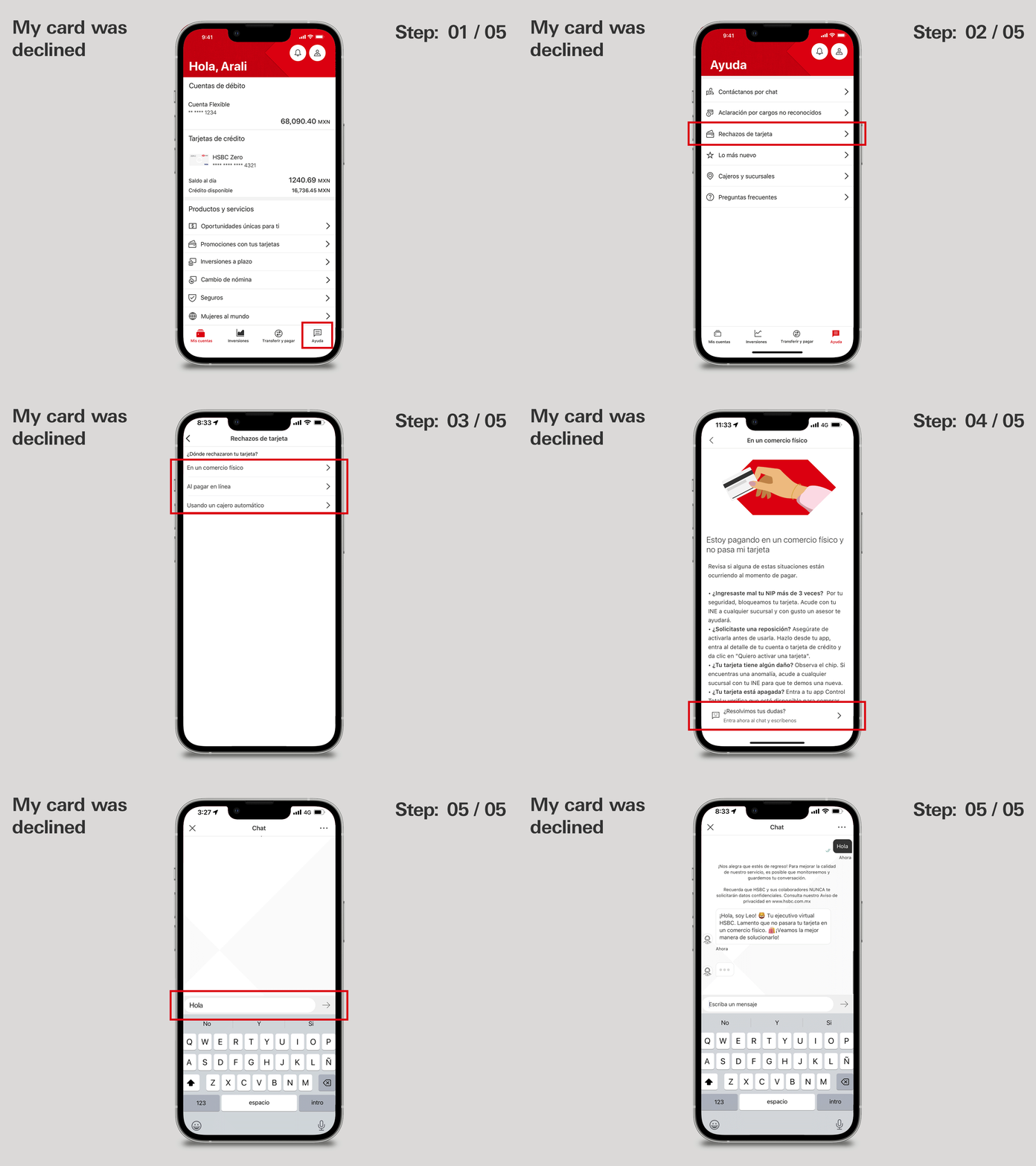
If your card is declined at a merchant or you’re having issues at an ATM, here’s how to get help
- On the home screen of your HSBC México app, select Ayuda (Help).
- Tap Rechazos de tarjeta (Card declines).
- On the next screen, choose whether your card was declined at a physical store, when paying online, or at an ATM.
- Read the guidance carefully, it may resolve your issue. If you still need help, click ¿Resolvimos tus dudas? (Did we answer your questions?)
- Start the conversation and review the information Leo has for you. If you’d like, Leo can transfer you to an agent.
Note: You can leave the chat while your query is being assigned to an agent; there’s no need to stay online and wait!
Was this information helpful?
If your card was lost or stolen, you can report it via chat. Here’s how:
- Sign in to your HSBC México app and select the card you want to report.
- On your card details screen, click Ver más (See more).
- Click Reportar tarjeta por robo o extravío (Report card as lost or stolen).
- Select Ir al chat (Go to chat).
- When the chat opens, start the conversation so an agent can help you file the report.
Note: You can leave the chat while your query is being assigned to an agent; there’s no need to stay online and wait!
Was this information helpful?
If you’re expecting a card to be delivered to your home, you can track the shipment via chat
- Open your HSBC México app and select Ayuda (Help).
- Choose Contáctanos por chat (Contact us via chat).
- Start the conversation by typing: ”Quiero localizar mi tarjeta” (“I want to track my card”) to get information about your card delivery and make changes if needed.
Was this information helpful?
Get insured via chat with support from an agent
- On the Home screen of your HSBC México app, select Seguros “Insurance”.
- Choose from Car insurance, Travel insurance, Cash Protection, Personal Accident insurance, Hospitalization insurance, or Electronics insurance.
- On the next screen, select Ir al chat (Go to chat).
- Start the conversation to activate the chat.
- When you see the options menu, select Contratar seguro (Buy insurance) and an agent will assist you with your request.
Note: If you choose Car insurance, Cash Protection, or Travel insurance, you’ll be redirected to the AXA website to continue the purchase process.
Was this information helpful?
Access our HSBC México app guides and your digital channels from within the app
- Sign in to your HSBC México app and go to Ayuda (Help).
- Tap Preguntas frecuentes (FAQs).
- Browse the categories and select a question.
- Read the information provided and resolve your questions directly in the app.
Note: If you can’t find the help you need, you can view more tutorials, here.
Was this information helpful?
Contact us via chat
If you have general questions, we can help you via chat
- Open your HSBC México app and go to Ayuda (Help).
- Select Contáctanos por chat (Contact us via chat).
- Start the conversation to get answers to your questions and complete certain transactions with real-time support from our agents.
Note: You can leave the chat while your query is being assigned to an agent; there’s no need to stay online and wait!
Was this information helpful?
My card was declined
If your card is declined at a merchant or you’re having issues at an ATM, here’s how to get help
- On the home screen of your HSBC México app, select Ayuda (Help).
- Tap Rechazos de tarjeta (Card declines).
- On the next screen, choose whether your card was declined at a physical store, when paying online, or at an ATM.
- Read the guidance carefully, it may resolve your issue. If you still need help, click ¿Resolvimos tus dudas? (Did we answer your questions?)
- Start the conversation and review the information Leo has for you. If you’d like, Leo can transfer you to an agent.
Note: You can leave the chat while your query is being assigned to an agent; there’s no need to stay online and wait!
Was this information helpful?
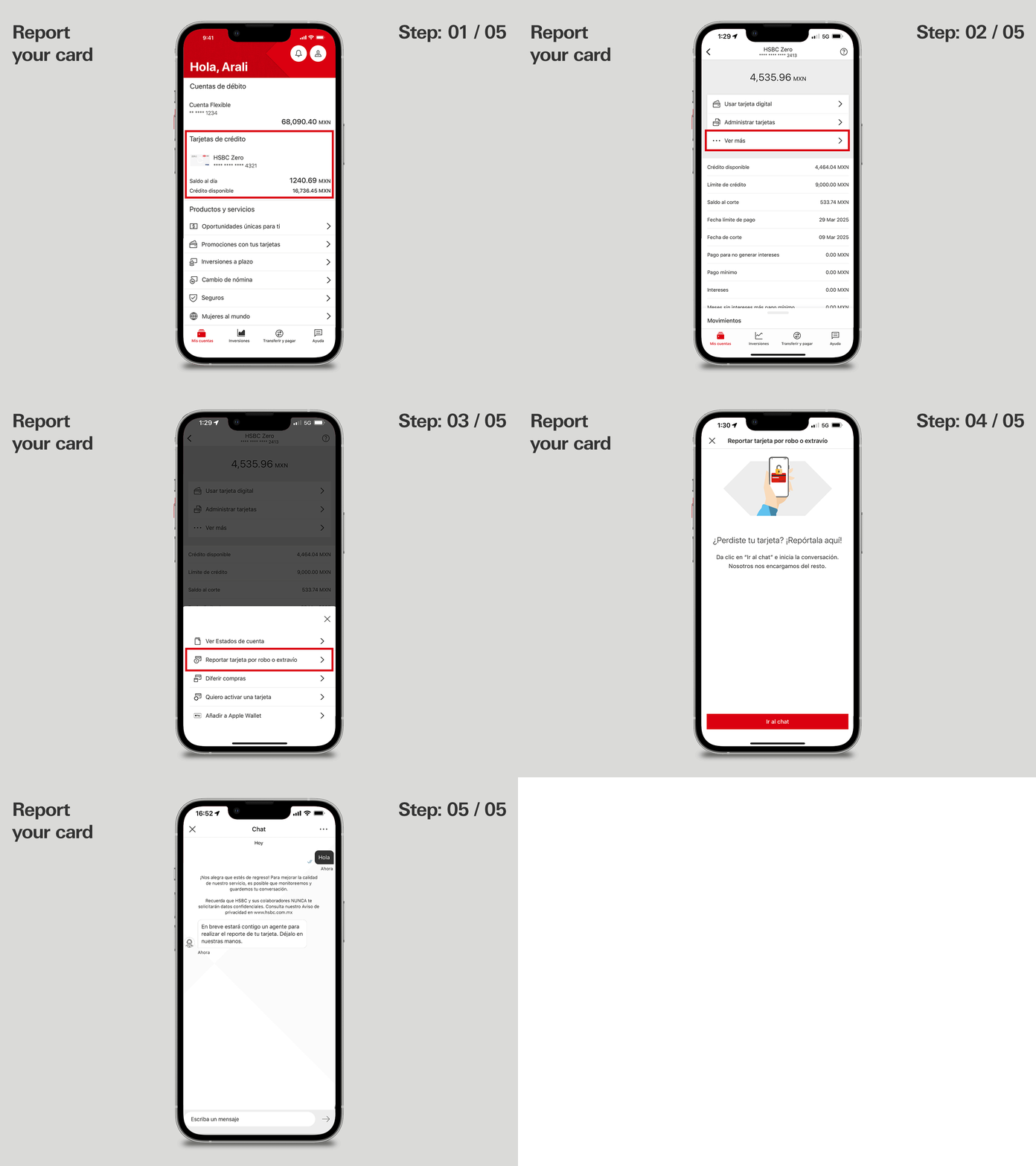
Report your card
If your card was lost or stolen, you can report it via chat. Here’s how:
- Sign in to your HSBC México app and select the card you want to report.
- On your card details screen, click Ver más (See more).
- Click Reportar tarjeta por robo o extravío (Report card as lost or stolen).
- Select Ir al chat (Go to chat).
- When the chat opens, start the conversation so an agent can help you file the report.
Note: You can leave the chat while your query is being assigned to an agent; there’s no need to stay online and wait!
Was this information helpful?
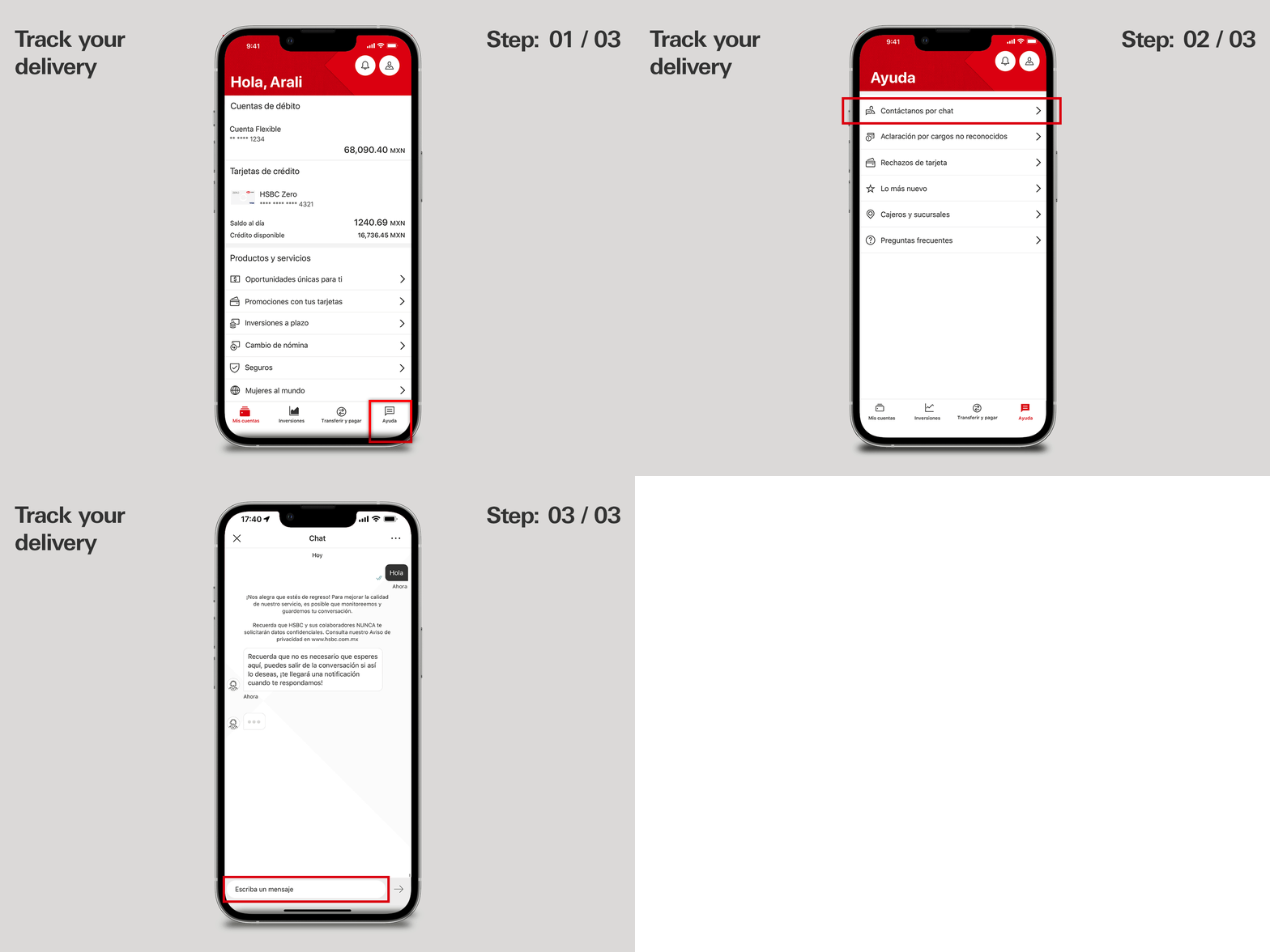
Track your card delivery
If you’re expecting a card to be delivered to your home, you can track the shipment via chat
- Open your HSBC México app and select Ayuda (Help).
- Choose Contáctanos por chat (Contact us via chat).
- Start the conversation by typing: ”Quiero localizar mi tarjeta” (“I want to track my card”) to get information about your card delivery and make changes if needed.
Was this information helpful?
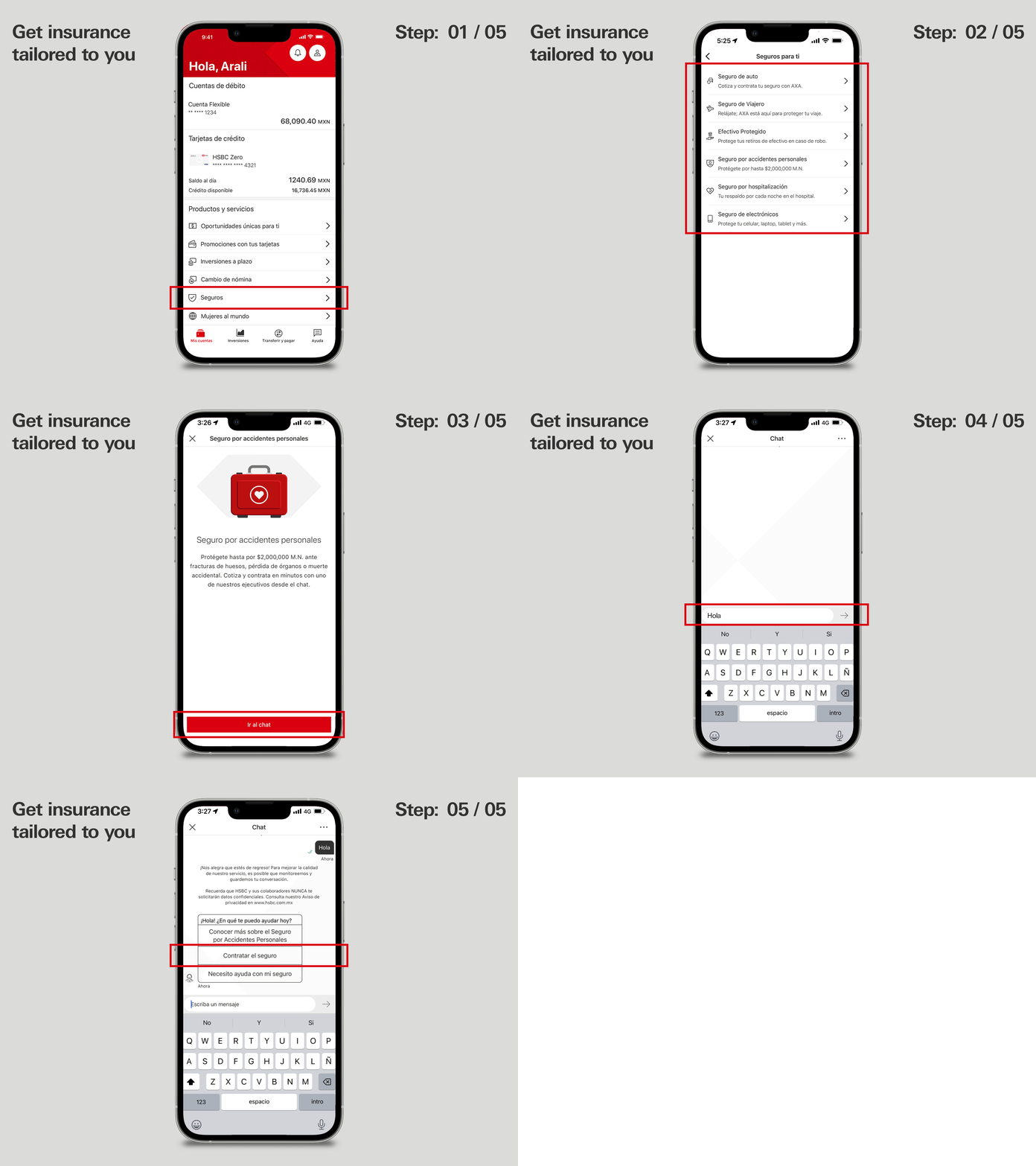
Get insurance tailored to you
Get insured via chat with support from an agent
- On the Home screen of your HSBC México app, select Seguros “Insurance”.
- Choose from Car insurance, Travel insurance, Cash Protection, Personal Accident insurance, Hospitalization insurance, or Electronics insurance.
- On the next screen, select Ir al chat (Go to chat).
- Start the conversation to activate the chat.
- When you see the options menu, select Contratar seguro (Buy insurance) and an agent will assist you with your request.
Note: If you choose Car insurance, Cash Protection, or Travel insurance, you’ll be redirected to the AXA website to continue the purchase process.
Was this information helpful?
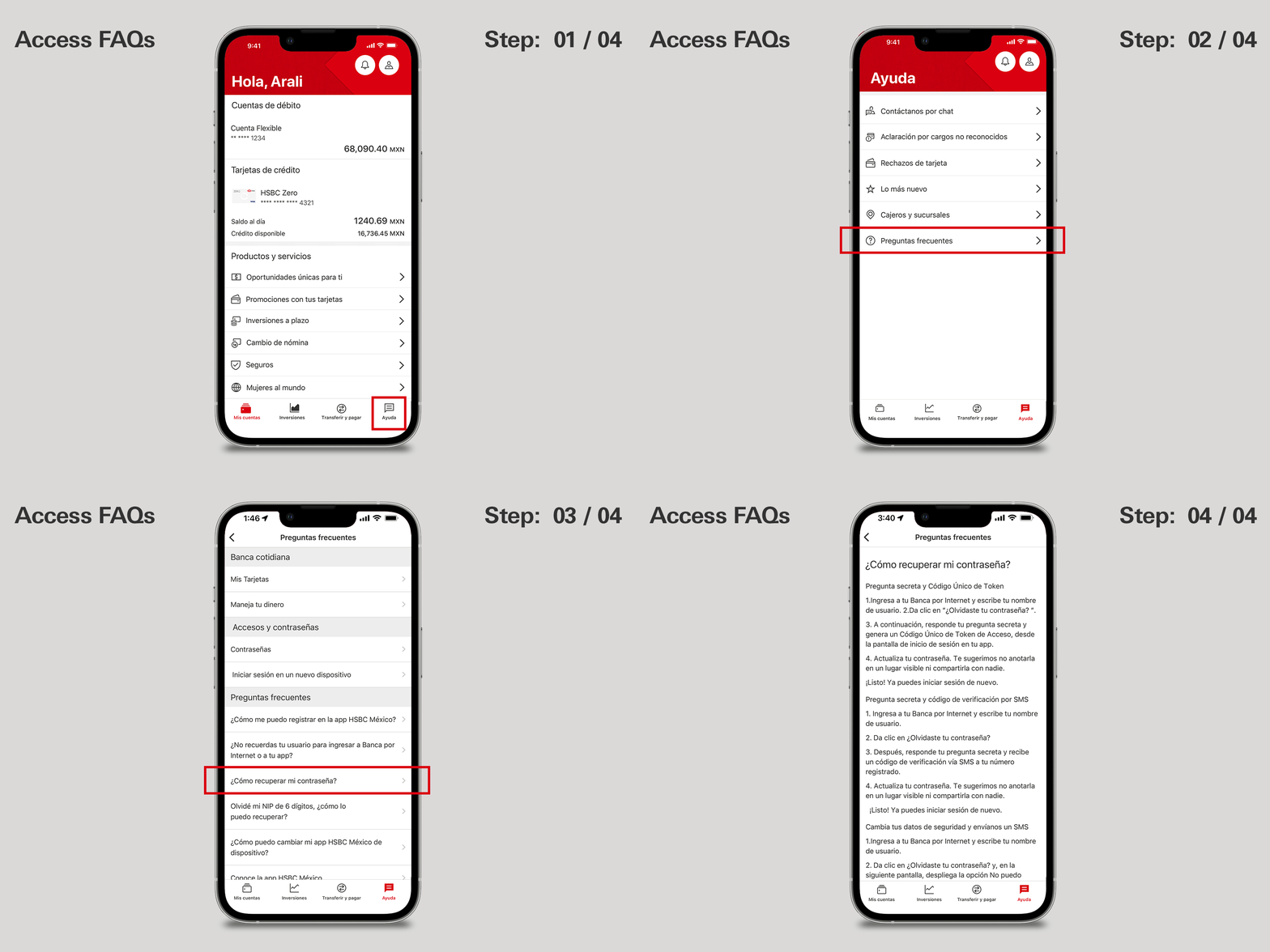
Access FAQs
Access our HSBC México app guides and your digital channels from within the app
- Sign in to your HSBC México app and go to Ayuda (Help).
- Tap Preguntas frecuentes (FAQs).
- Browse the categories and select a question.
- Read the information provided and resolve your questions directly in the app.
Note: If you can’t find the help you need, you can view more tutorials, here.
Was this information helpful?
Pay your card and bills through your HSBC Mexico app
Do it quickly and securely - all from the comfort of your home!
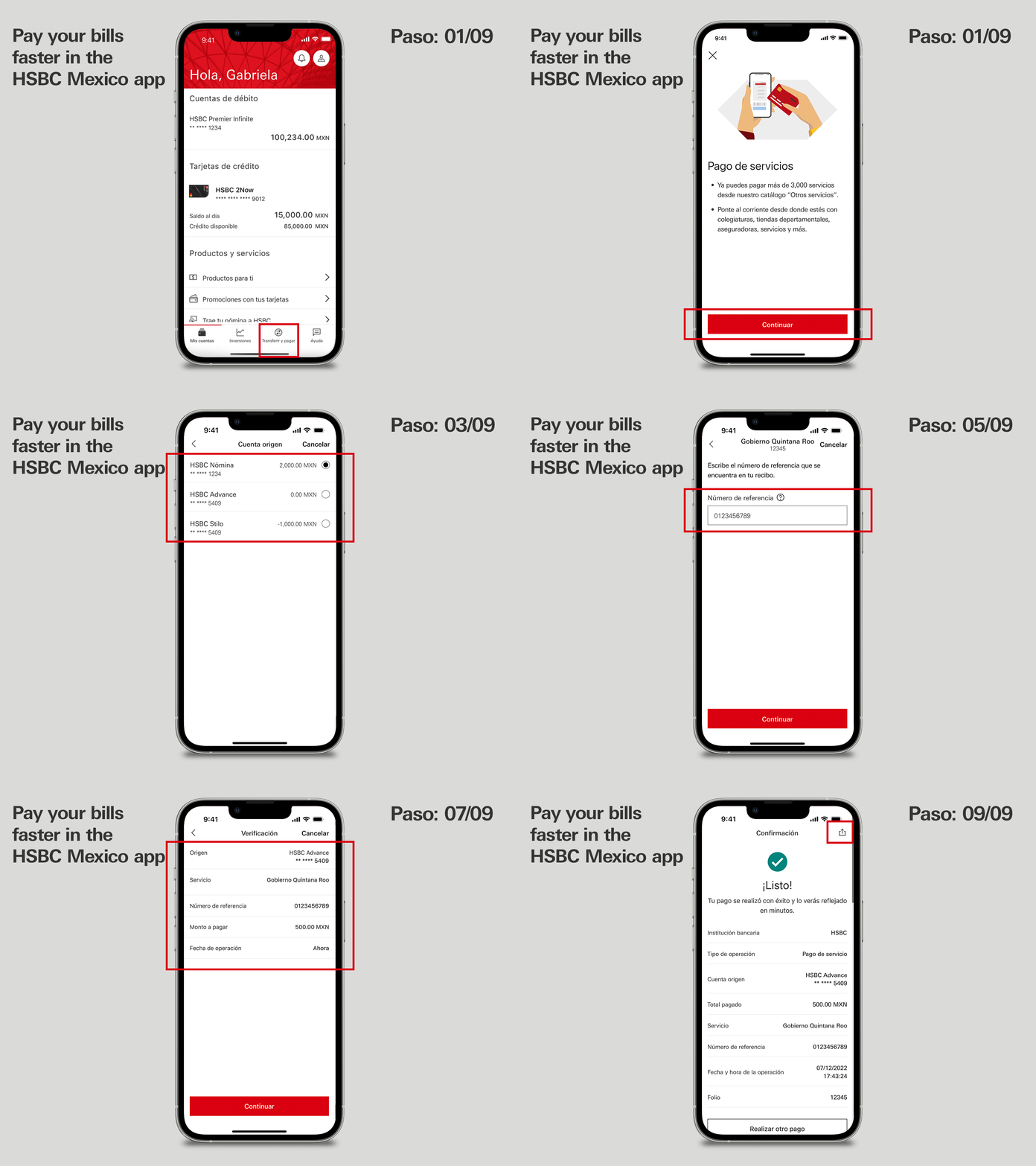
Pay your bills faster in the HSBC Mexico app
- Open the HSBC Mexico app and go to Transfer & Pay.
- Select Pago de servicios (Bill Payments). Review the details and tap Continuar (Continue).
- Choose the cuenta origen (account you’ll pay from)
- Find and select the service you want to pay.
- Enter the número de referencia (reference number) shown on your bill or statement.
- Enter the amount you want to pay.
- Double-check that these details are correct:
⦁ Servicio (Service)
⦁ Referencia (Reference)
⦁ Monto (Amount)
Once confirmed, tap Continuar (Continue).
8. Confirm with your 6-digit PIN or Fingerprint/Face ID.
9. Done, your payment will be reflected in minutes! You can also share the receipt if you need it.
Note: Before you authorise the payment, make sure the source account, service, reference number and amount are correct. Processing times may vary depending on the service provider.
Was this information helpful?
Pay your credit card wherever you are
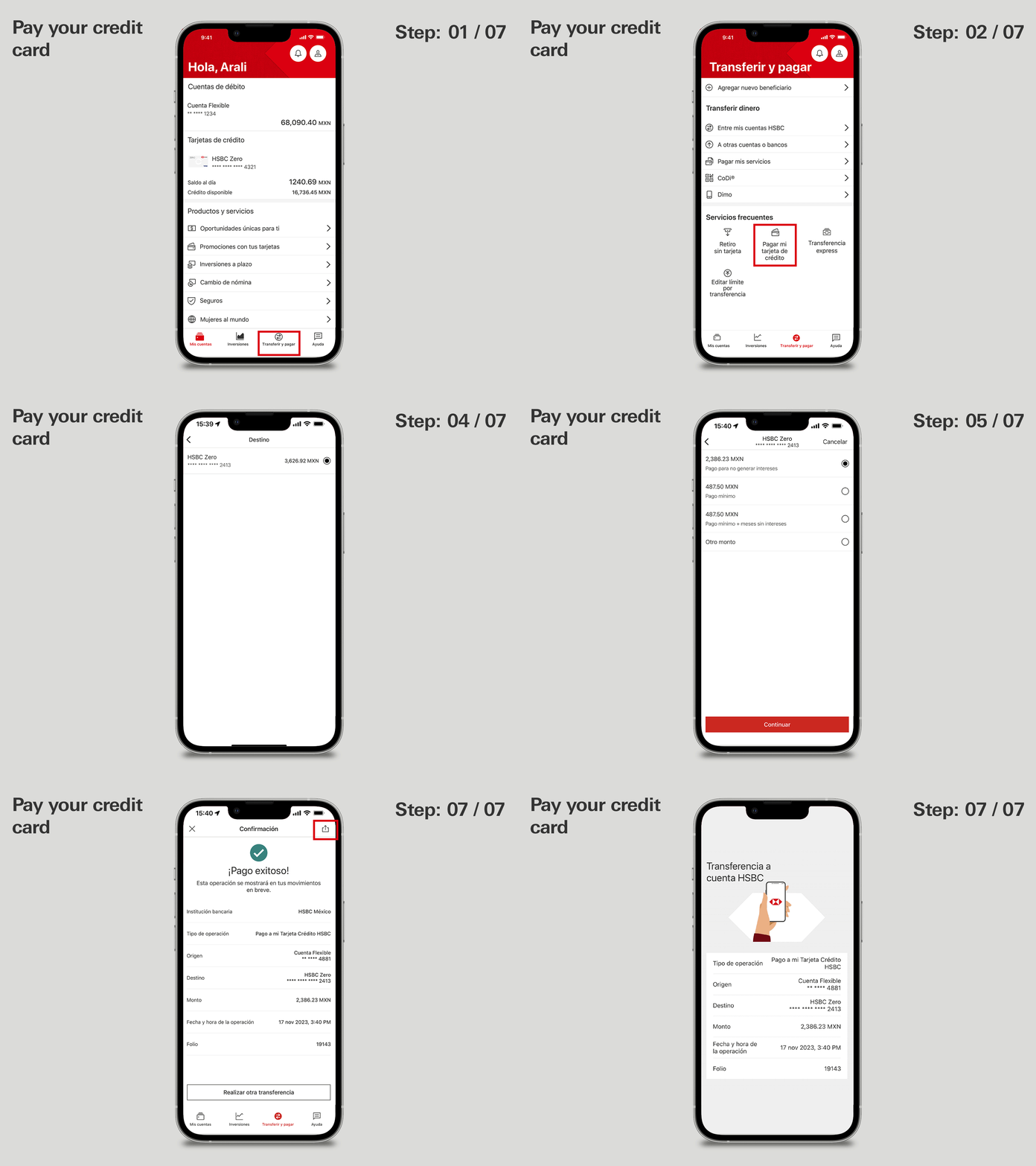
- Open your HSBC México app and select Transferir y pagar (Transfer and Pay).
- Under Servicios frecuentes (Frequent services), click Pagar mi tarjeta de crédito (Pay my credit card).
- In Origen (From), select the account the money will be taken from.
- In Destino (To), choose the card you want to pay.
- Select the type of payment you want to make and click Continuar (Continue).
- Review the information and select Confirmar (Confirm).
- All set! You’ve paid your HSBC credit card. Save your payment receipt by clicking the icon in the top-right corner.
Was this information helpful?
Pay your bills
Pay your bills faster in the HSBC Mexico app
- Open the HSBC Mexico app and go to Transfer & Pay.
- Select Pago de servicios (Bill Payments). Review the details and tap Continuar (Continue).
- Choose the cuenta origen (account you’ll pay from)
- Find and select the service you want to pay.
- Enter the número de referencia (reference number) shown on your bill or statement.
- Enter the amount you want to pay.
- Double-check that these details are correct:
⦁ Servicio (Service)
⦁ Referencia (Reference)
⦁ Monto (Amount)
Once confirmed, tap Continuar (Continue).
8. Confirm with your 6-digit PIN or Fingerprint/Face ID.
9. Done, your payment will be reflected in minutes! You can also share the receipt if you need it.
Note: Before you authorise the payment, make sure the source account, service, reference number and amount are correct. Processing times may vary depending on the service provider.
Was this information helpful?
Pay your credit card
Pay your credit card wherever you are
- Open your HSBC México app and select Transferir y pagar (Transfer and Pay).
- Under Servicios frecuentes (Frequent services), click Pagar mi tarjeta de crédito (Pay my credit card).
- In Origen (From), select the account the money will be taken from.
- In Destino (To), choose the card you want to pay.
- Select the type of payment you want to make and click Continuar (Continue).
- Review the information and select Confirmar (Confirm).
- All set! You’ve paid your HSBC credit card. Save your payment receipt by clicking the icon in the top-right corner.
Was this information helpful?
Take out and manage your HSBC Insurance products
Manage your insurance policies and view your policy details from your mobile phone.
All your insurance details in your hand!
A) View your insurance policies
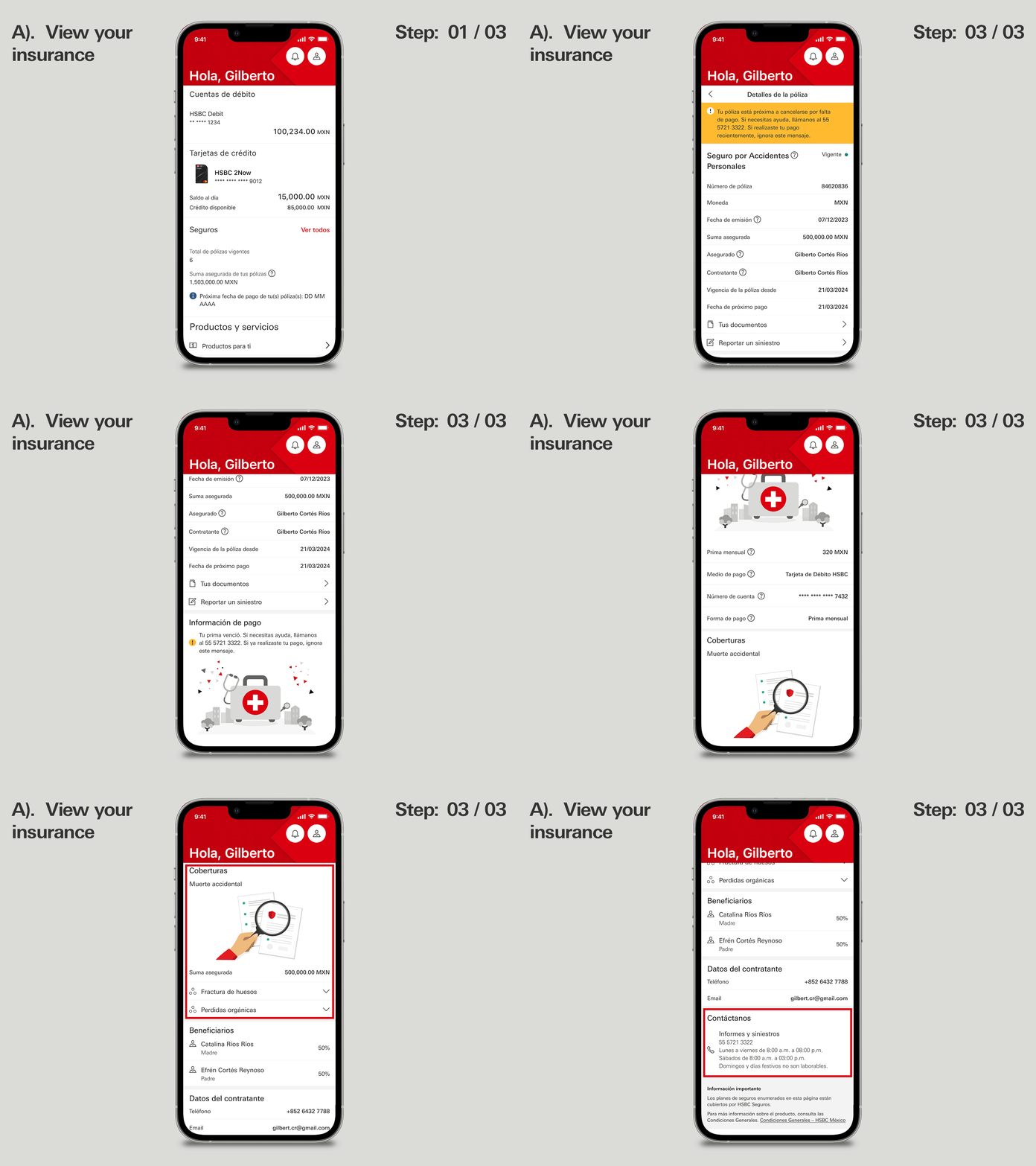
- On the home screen of your HSBC México app, go to Seguros (Insurance) and select Ver todos (View all, in red on the right).
- Select the policy you want to review.
- You’ll be able to see key details, such as:
⦁ Policy details
⦁ Payment information
⦁ Document downloads
⦁ Coverage
⦁ Beneficiaries
⦁ Policyholder details
You can also receive assistance or report a claim using the ”Reportar un siniestro” (“Report a claim”) link in the app, or by calling us via the Contáctanos (Contact us) section.
Note: This section applies only to the following products: HSBC Retiro Protegido, Individual Life Insurance, Personal Accident Insurance, Vida 65, Hospitalisation Support, HSBC Ahorro Seguro, and HSBC Vida y Ahorro Insurance.
B) View and download your insurance policies and endorsements
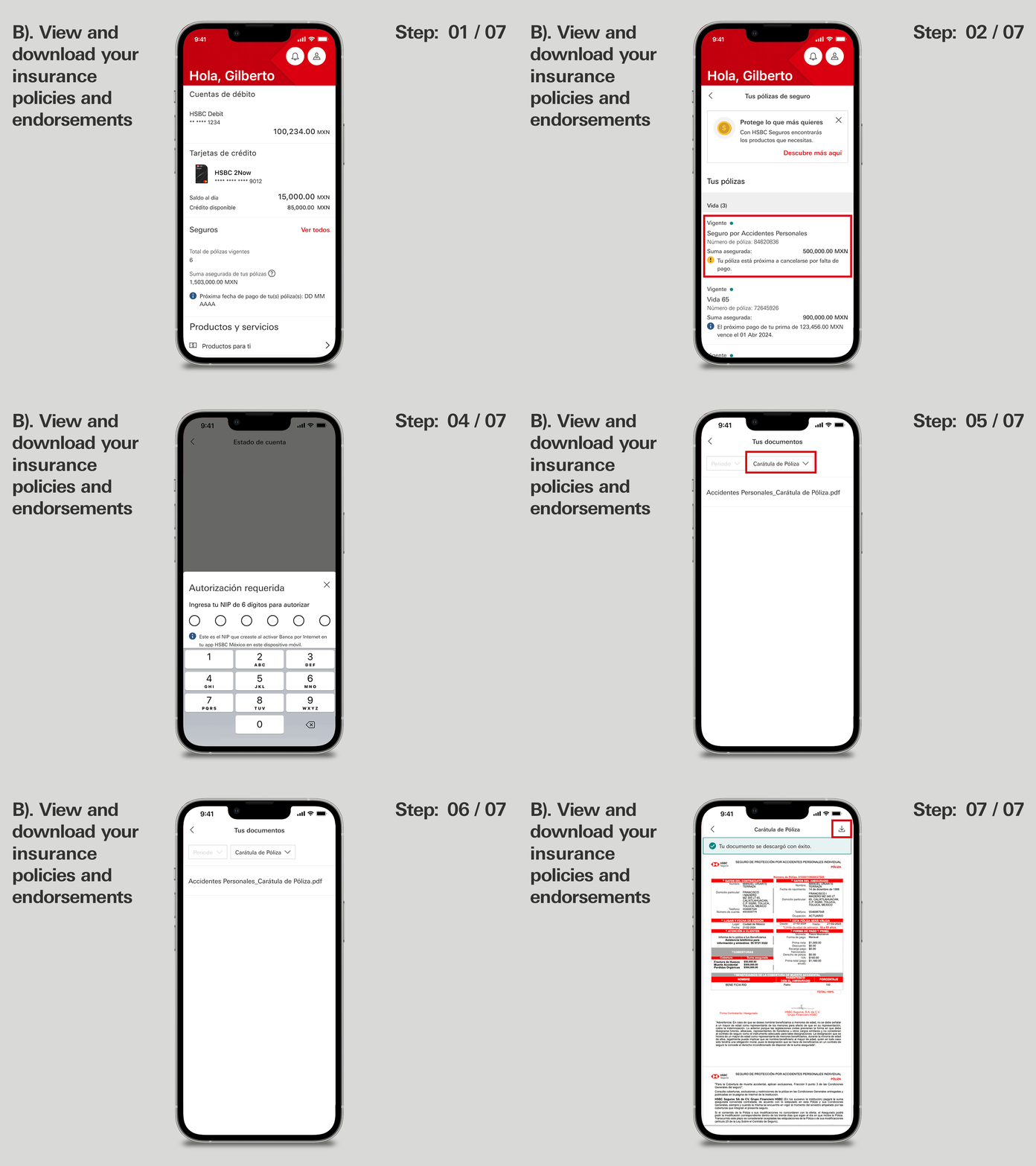
- On the home screen of your HSBC México app, go to Insurance and select View all (in red on the right).
- Select the policy you want to review.
- Click Tus documentos (Your documents).
- Enter your 6-digit PIN, or use your fingerprint or Face ID.
- Select the document you want to view.
- Click to open the document on your phone, or download it.
- All set! Remember, you can download it to your phone and view it instantly.
Note: The month filter will only be available for the following documents: statement, income receipt, and endorsements.
Was this information helpful?
View your insurance policies
All your insurance details in your hand!
A) View your insurance policies
- On the home screen of your HSBC México app, go to Seguros (Insurance) and select Ver todos (View all, in red on the right).
- Select the policy you want to review.
- You’ll be able to see key details, such as:
⦁ Policy details
⦁ Payment information
⦁ Document downloads
⦁ Coverage
⦁ Beneficiaries
⦁ Policyholder details
You can also receive assistance or report a claim using the ”Reportar un siniestro” (“Report a claim”) link in the app, or by calling us via the Contáctanos (Contact us) section.
Note: This section applies only to the following products: HSBC Retiro Protegido, Individual Life Insurance, Personal Accident Insurance, Vida 65, Hospitalisation Support, HSBC Ahorro Seguro, and HSBC Vida y Ahorro Insurance.
B) View and download your insurance policies and endorsements
- On the home screen of your HSBC México app, go to Insurance and select View all (in red on the right).
- Select the policy you want to review.
- Click Tus documentos (Your documents).
- Enter your 6-digit PIN, or use your fingerprint or Face ID.
- Select the document you want to view.
- Click to open the document on your phone, or download it.
- All set! Remember, you can download it to your phone and view it instantly.
Note: The month filter will only be available for the following documents: statement, income receipt, and endorsements.
Was this information helpful?
Invest with your HSBC México app
Grow your money and earn returns wherever you are, using the app.
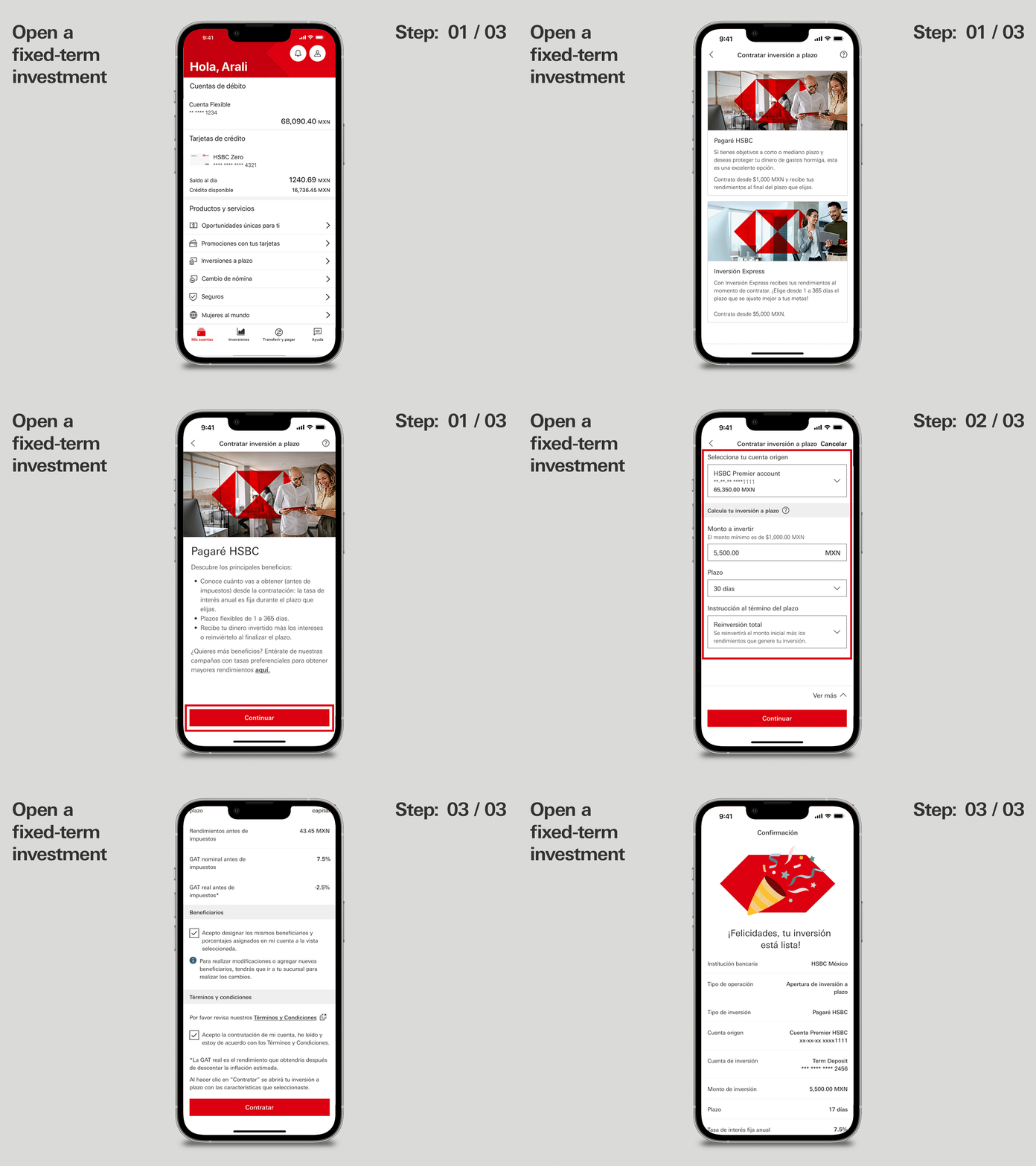
Invest in a fixed-term deposit today from your HSBC México app in just 3 steps!
- Open your HSBC México app and select Inversiones a plazo (Fixed-term investments) under Productos y servicios (Products & Services). Choose whether you want an HSBC Promissory Note (Pagaré) or an Express Investment.
2. Select the cuenta origen (from account), enter the monto a invertir (amount to invest), choose the plazo (term), and select the instrucción al término del plazo (instruction at maturity).
3. Check that the details are correct, review and accept the Términos y condiciones (Terms and Conditions), and click Contratar (Invest). Confirm with your 6-digit PIN, or using your fingerprint or Face ID.
All set! You’ve successfully made your fixed-term investment.
Was this information helpful?
A) Open your first investment account
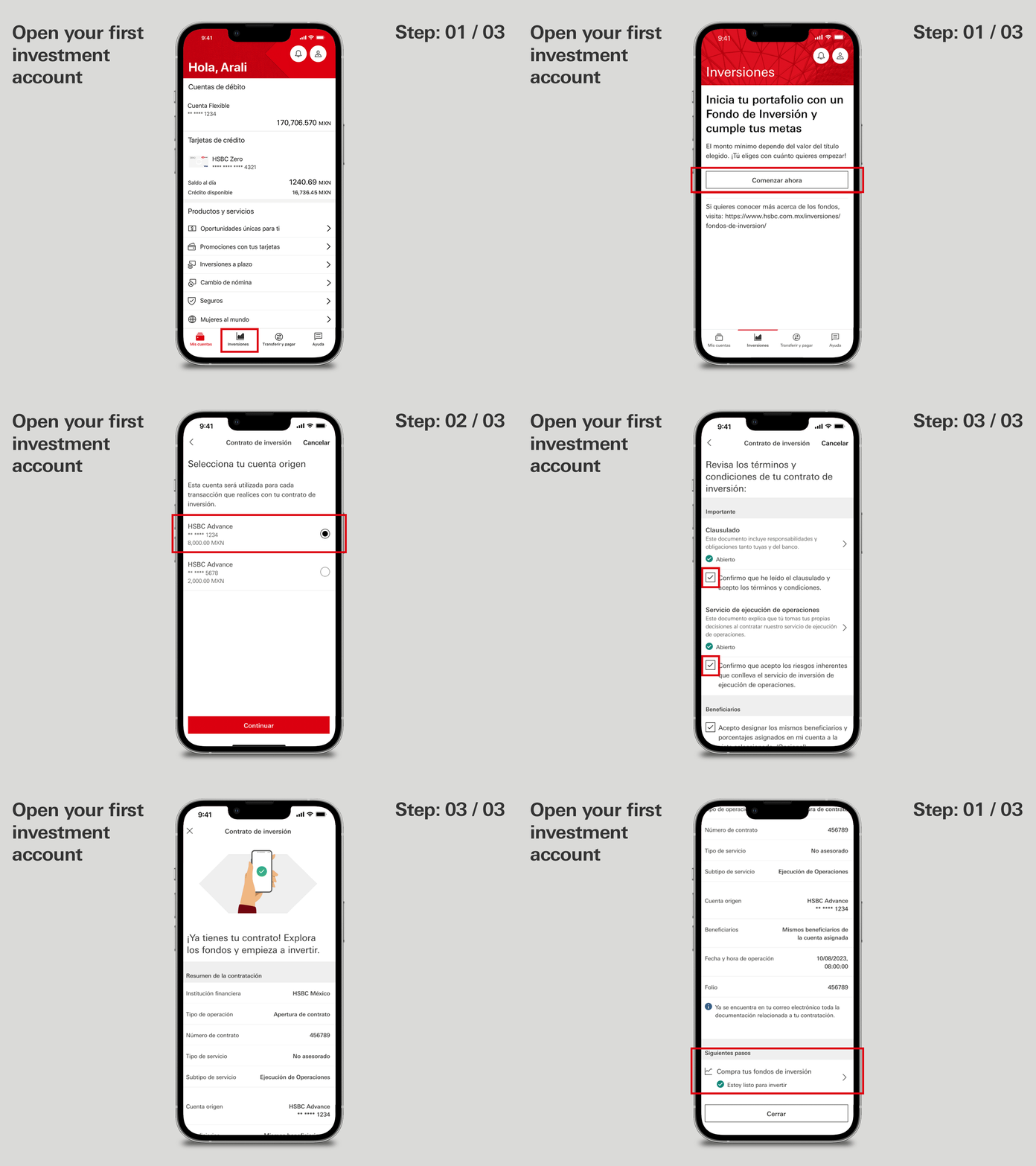
Getting started with investing is really simple. Just follow these 3 steps:
- Open your HSBC México app, select Inversiones (Investments), and click Comenzar ahora (Get started).
- After reviewing your information, choose the cuenta origen (from account) you’ll link to your investment account and click Continuar (Continue).
- Review and confirm the Términos y condiciones (Terms and Conditions). All set, you now have your investment account!
You can now go to Compra tus fondos de inversión (Buy investment funds) at the bottom of the screen and enter the amount you want to invest.ertir.
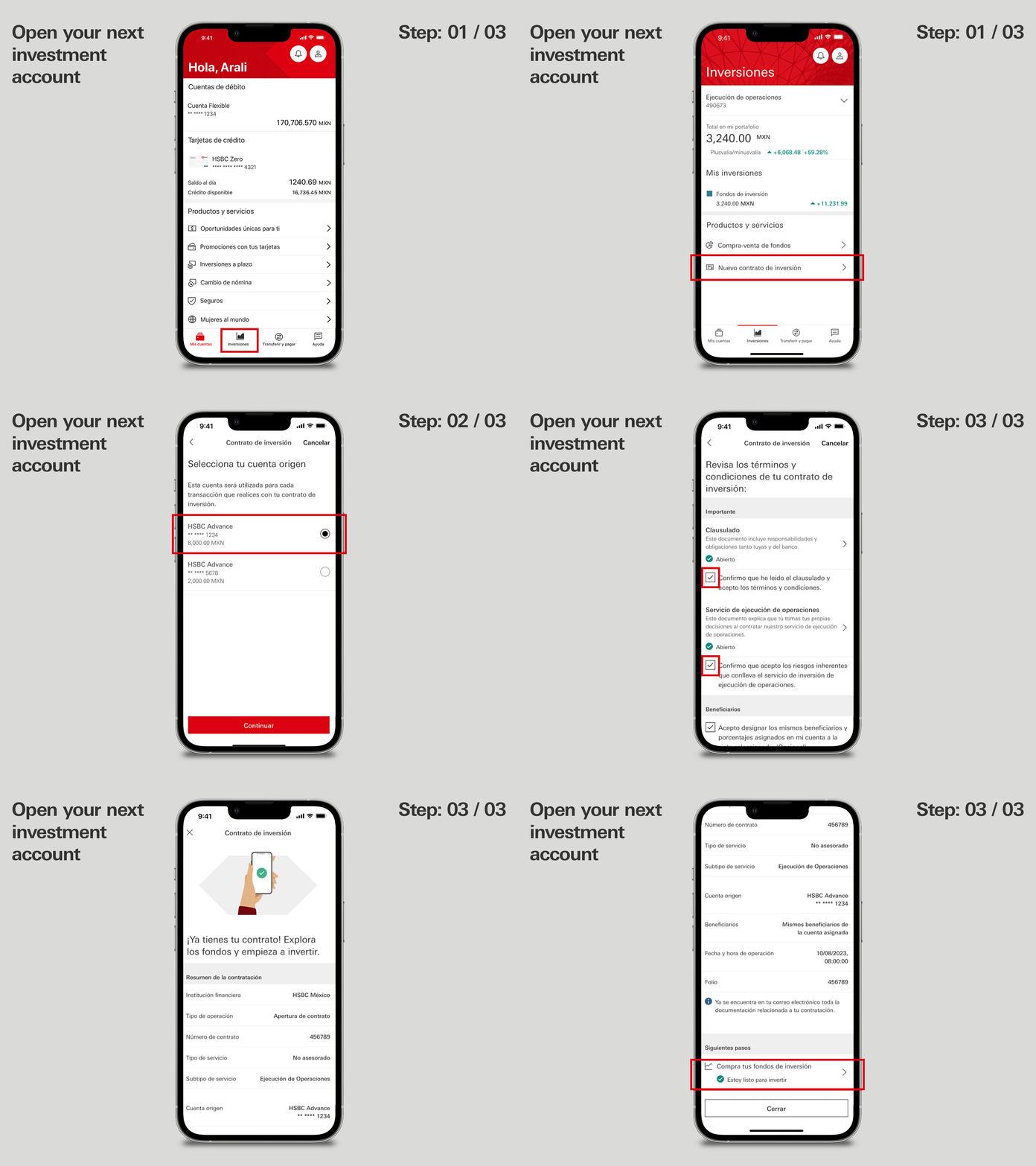
B) Open your next investment account
If you already have an investment account and want to open a new one, follow these steps:
- Open your HSBC México app, select Inversiones (Investments), and choose Nuevo contrato de inversión (New investment account).
- After reviewing your information, choose the cuenta origen (from account) you’ll link to your new investment account and click Continuar (Continue).
- Review and confirm the Términos y Condiciones (Terms and Conditions). All set, your new investment account is now open!
With the new account you opened, you can buy more funds and diversify your investments.
Was this information helpful?
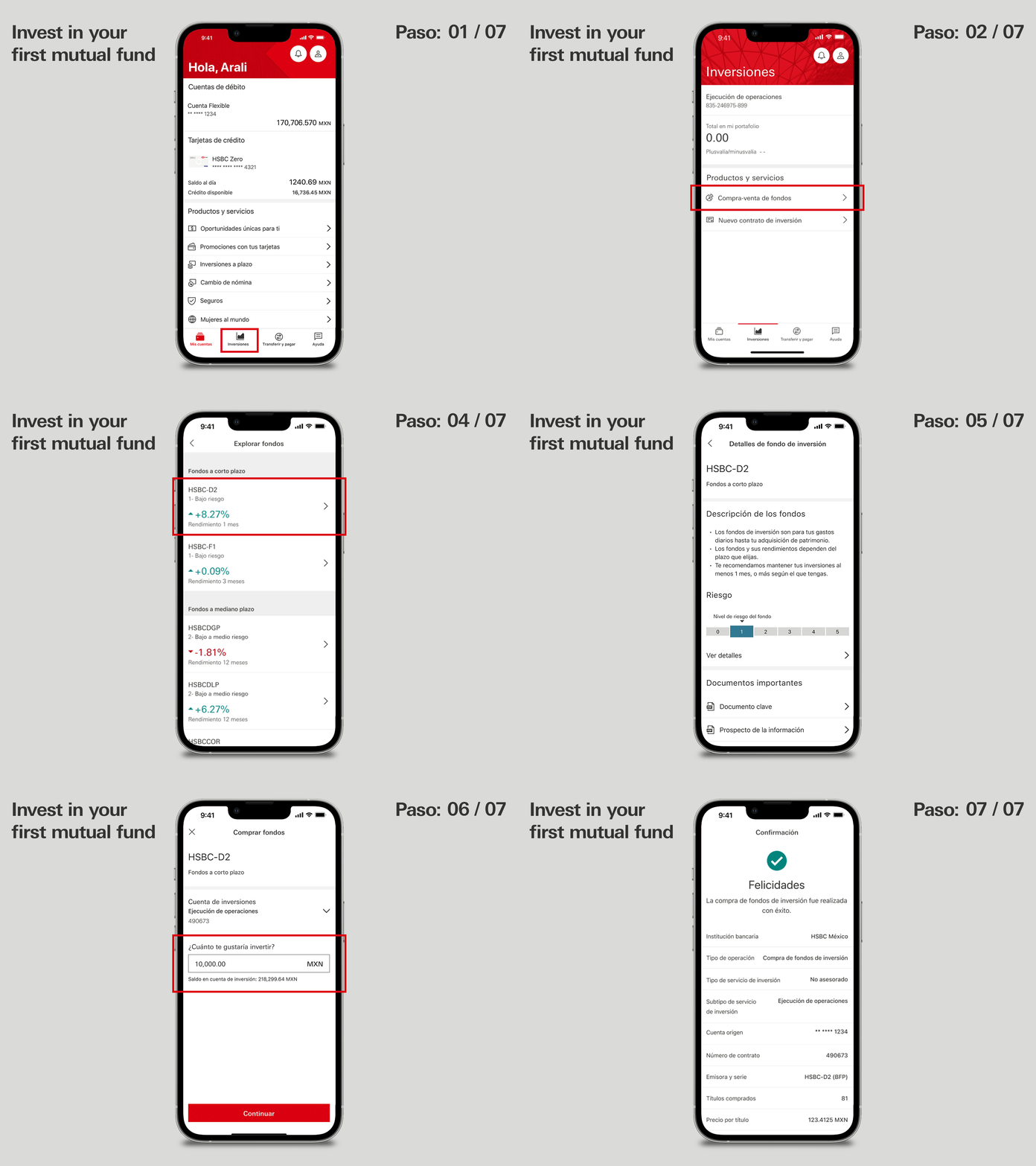
A) Invest in your first mutual fund
If you already have an investment account in place, it’s time to choose the fund that best suits you and start investing
- Open your HSBC México app and click Inversiones (Investments).
- Select Compra - Venta de fondos (Mutual Funds Buying & Selling).
- Choose Explorar fondos disponibles (Explore available funds).
- Browse our available funds and select the one that best suits you.
- Review the fund details and, if it’s what you’re looking for, click Continuar (Continue).
- Enter the amount you’d like to invest and click Continuar (Continue).
- Congratulations, you’ve invested in your first mutual fund!
From your HSBC México app, you can track your fund’s performance and buy more or sell whenever you want, Monday to Friday, 8:00 a.m. to 1:30 p.m.
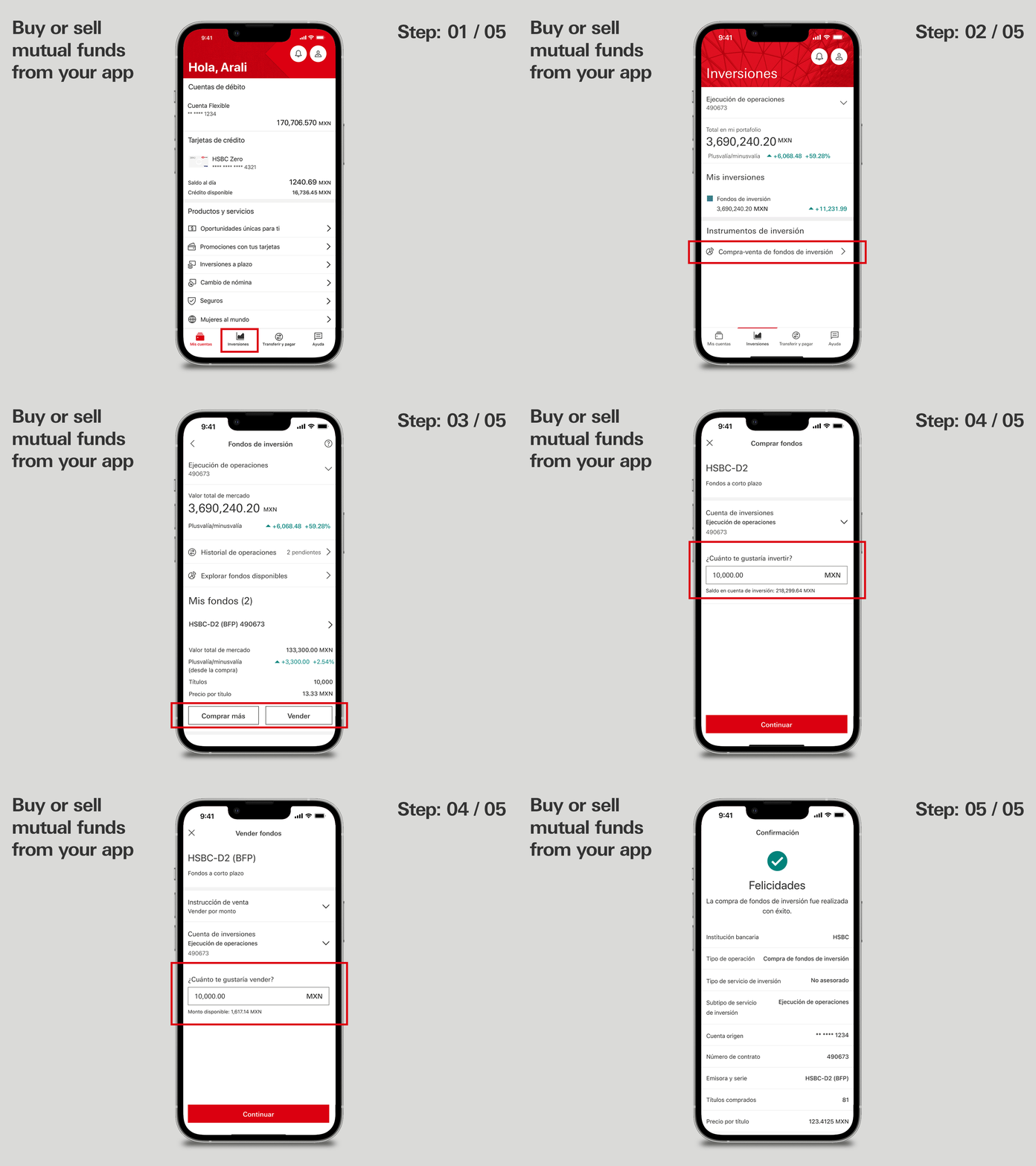
B) Buy or sell mutual funds from your app
Already have a mutual fund? Sell it or buy more by following these steps:
- Open your HSBC México app and tap Inversiones (Investments).
- Select Compra-Venta de fondos (Mutual Funds Buying & Selling).
- Choose Comprar más (Buy more) or Vender (Sell), whatever action you want to do.
- Enter the amount you’d like to buy or sell and click Continuar (Continue).
- Done! Your transaction was completed successfully.
Remember: service hours are Monday to Friday, 8:00 a.m. to 1:30 p.m. With an investment agreement in place, you can buy and sell mutual funds from your HSBC México app wherever you are.
Was this information helpful?
Open a fixed-term investment
Invest in a fixed-term deposit today from your HSBC México app in just 3 steps!
- Open your HSBC México app and select Inversiones a plazo (Fixed-term investments) under Productos y servicios (Products & Services). Choose whether you want an HSBC Promissory Note (Pagaré) or an Express Investment.
2. Select the cuenta origen (from account), enter the monto a invertir (amount to invest), choose the plazo (term), and select the instrucción al término del plazo (instruction at maturity).
3. Check that the details are correct, review and accept the Términos y condiciones (Terms and Conditions), and click Contratar (Invest). Confirm with your 6-digit PIN, or using your fingerprint or Face ID.
All set! You’ve successfully made your fixed-term investment.
Was this information helpful?
Open your investment account
A) Open your first investment account
Getting started with investing is really simple. Just follow these 3 steps:
- Open your HSBC México app, select Inversiones (Investments), and click Comenzar ahora (Get started).
- After reviewing your information, choose the cuenta origen (from account) you’ll link to your investment account and click Continuar (Continue).
- Review and confirm the Términos y condiciones (Terms and Conditions). All set, you now have your investment account!
You can now go to Compra tus fondos de inversión (Buy investment funds) at the bottom of the screen and enter the amount you want to invest.ertir.
B) Open your next investment account
If you already have an investment account and want to open a new one, follow these steps:
- Open your HSBC México app, select Inversiones (Investments), and choose Nuevo contrato de inversión (New investment account).
- After reviewing your information, choose the cuenta origen (from account) you’ll link to your new investment account and click Continuar (Continue).
- Review and confirm the Términos y Condiciones (Terms and Conditions). All set, your new investment account is now open!
With the new account you opened, you can buy more funds and diversify your investments.
Was this information helpful?
Buy and sell funds
A) Invest in your first mutual fund
If you already have an investment account in place, it’s time to choose the fund that best suits you and start investing
- Open your HSBC México app and click Inversiones (Investments).
- Select Compra - Venta de fondos (Mutual Funds Buying & Selling).
- Choose Explorar fondos disponibles (Explore available funds).
- Browse our available funds and select the one that best suits you.
- Review the fund details and, if it’s what you’re looking for, click Continuar (Continue).
- Enter the amount you’d like to invest and click Continuar (Continue).
- Congratulations, you’ve invested in your first mutual fund!
From your HSBC México app, you can track your fund’s performance and buy more or sell whenever you want, Monday to Friday, 8:00 a.m. to 1:30 p.m.
B) Buy or sell mutual funds from your app
Already have a mutual fund? Sell it or buy more by following these steps:
- Open your HSBC México app and tap Inversiones (Investments).
- Select Compra-Venta de fondos (Mutual Funds Buying & Selling).
- Choose Comprar más (Buy more) or Vender (Sell), whatever action you want to do.
- Enter the amount you’d like to buy or sell and click Continuar (Continue).
- Done! Your transaction was completed successfully.
Remember: service hours are Monday to Friday, 8:00 a.m. to 1:30 p.m. With an investment agreement in place, you can buy and sell mutual funds from your HSBC México app wherever you are.
Was this information helpful?